How to Add Expenses as an Employee in BusinessTravel.com
1. Login Page
Go to the BusinessTravel.com website and log in using your credentials (username and password).

2. Dashboard
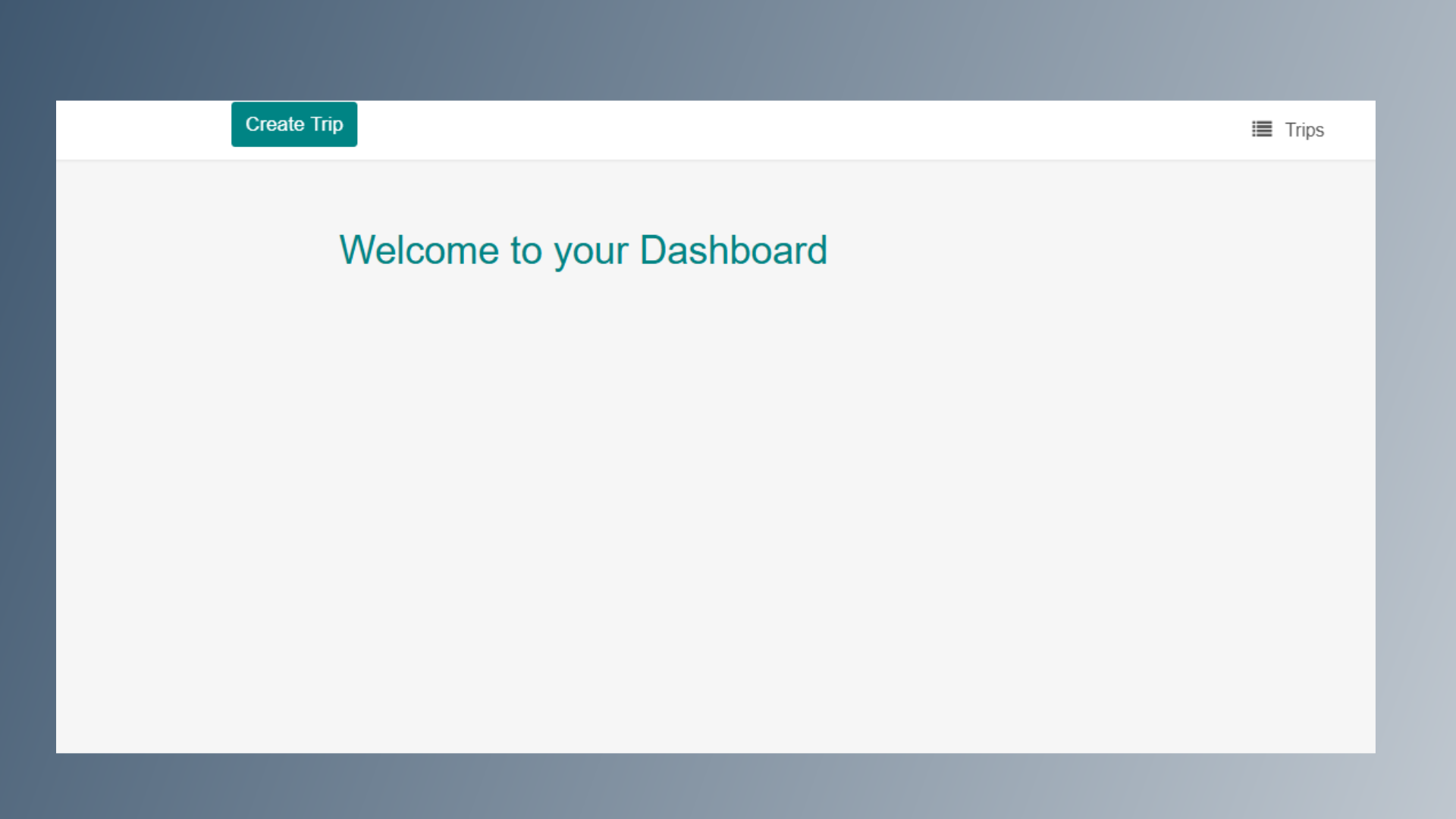
After logging in, you will be directed to the Dashboard page.
3. Create Trip
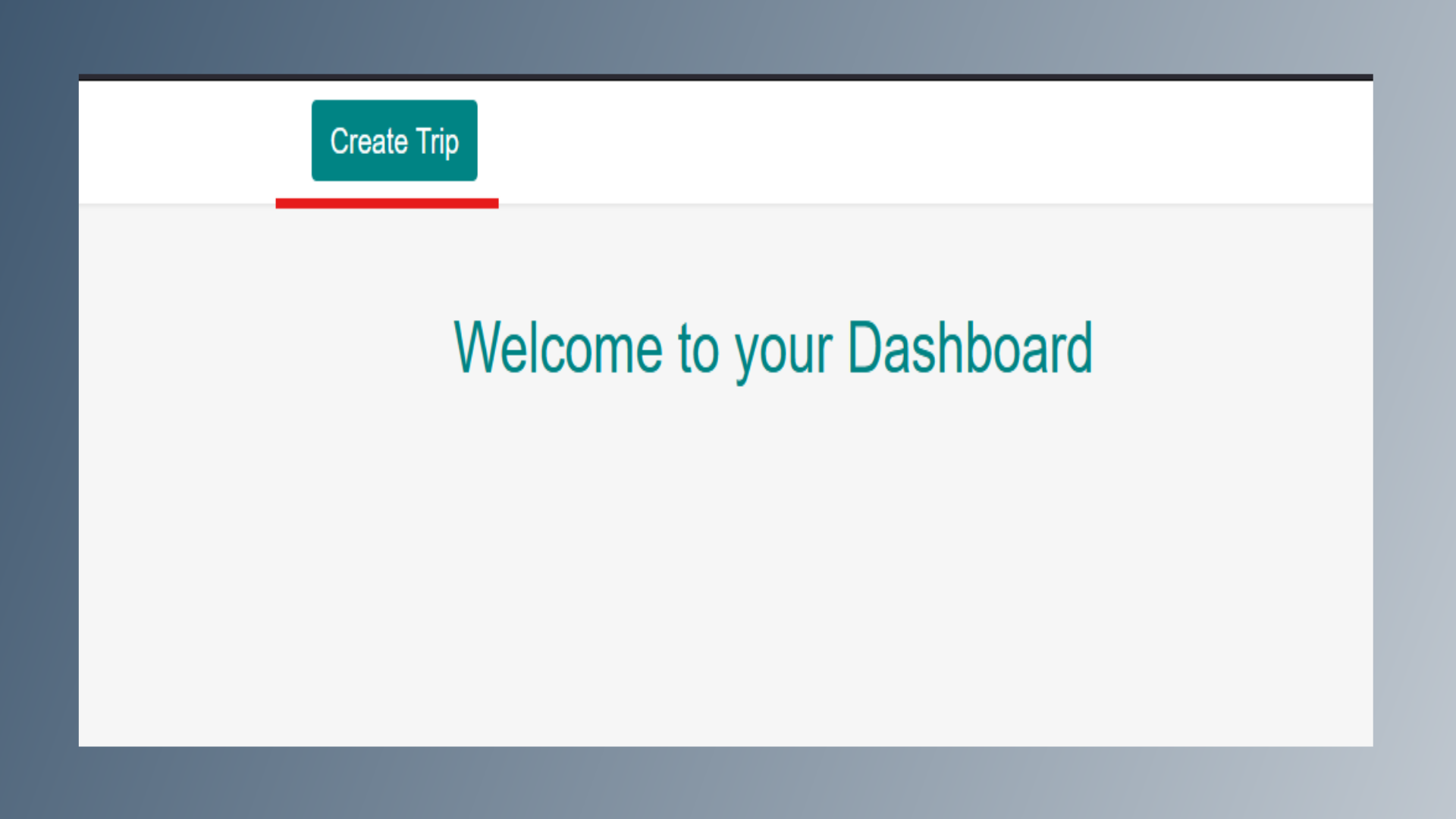
From the Dashboard, click on the Create Trip option.
4. Trip Details
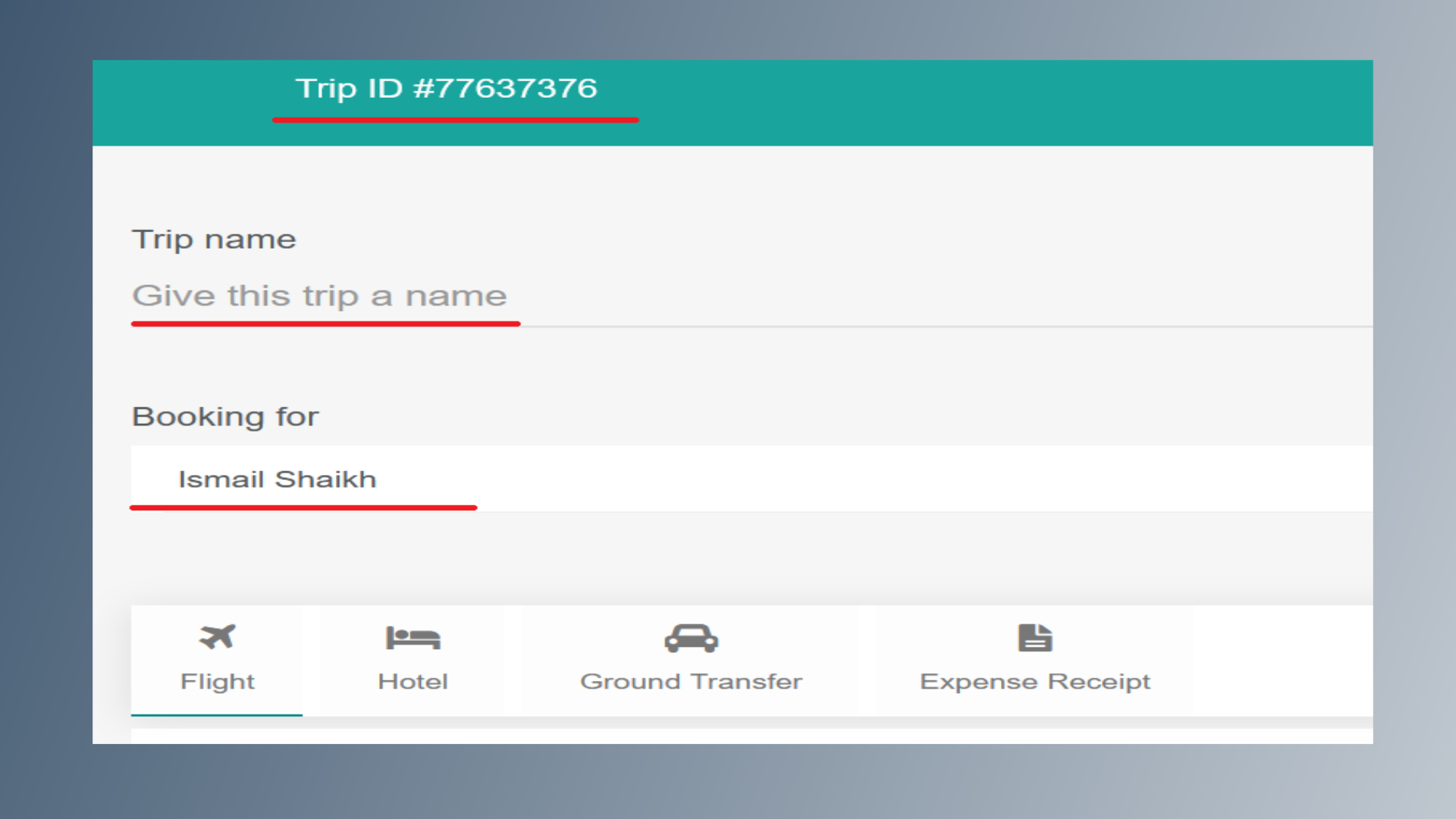
A Trip ID will be generated automatically at the top of the page. Enter the Trip Name. The Traveler Name (User Name) will be automatically selected under the Booking For field.
5. Expense Details
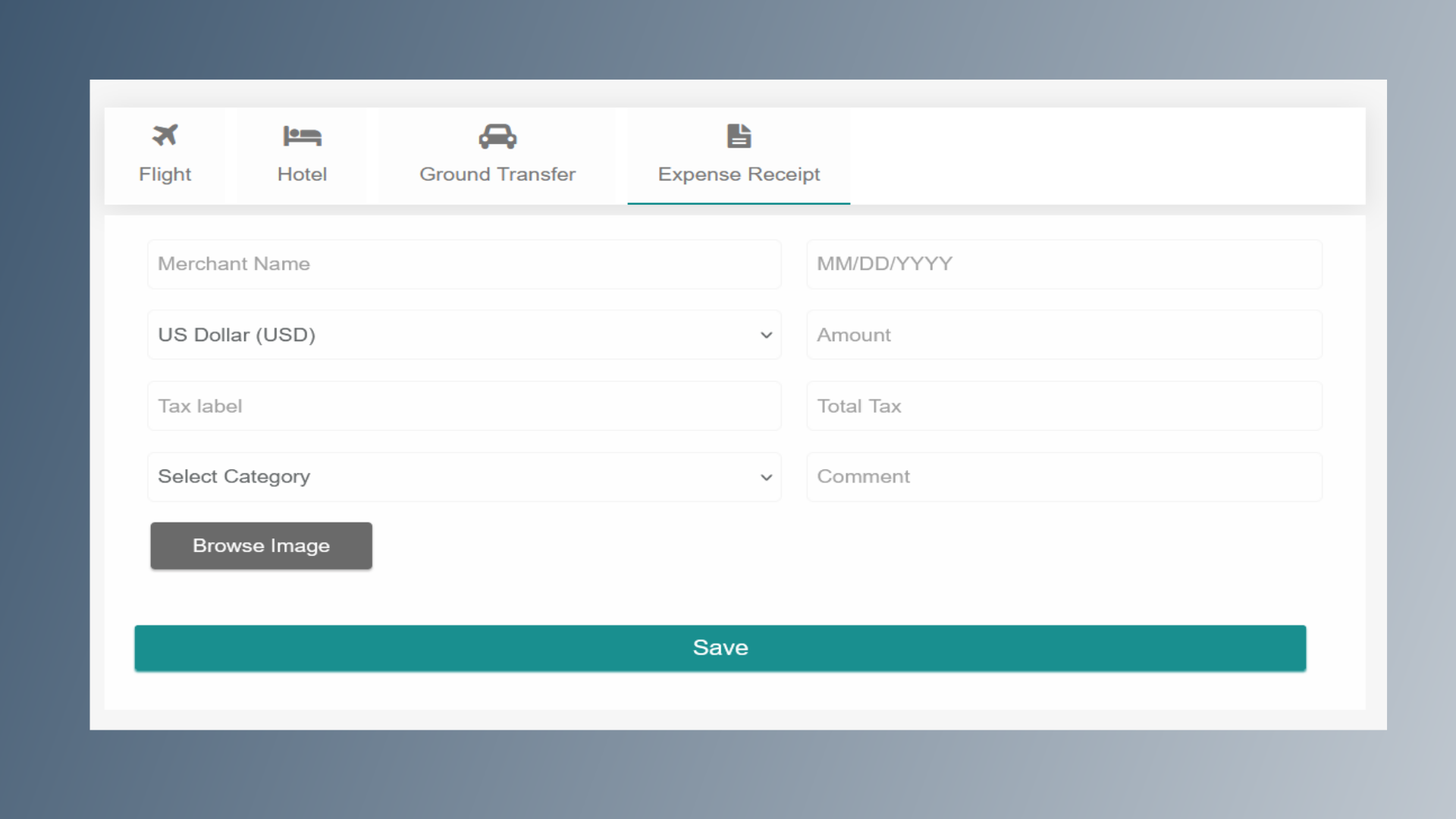
Click on the Expense Receipt option to submit your expense. Fill in the required information: Enter the Merchant Name. Select the Receipt Date. Choose the Currency (Example: USD, GBP, EUR, etc.). Enter the Amount. Update the Tax Label (if applicable). Enter the Total Tax amount. Select the relevant Category (Example: Fuel, Entertainment, Phone, etc.). Add comments if required. Click on Browse Image to upload the supporting document. Attach the receipt image or file. Review all details. Click on Save to complete the request. This concludes the expense receipt submission process