How to create a trip using the Trip function and adding employees from the list
1. Login Page
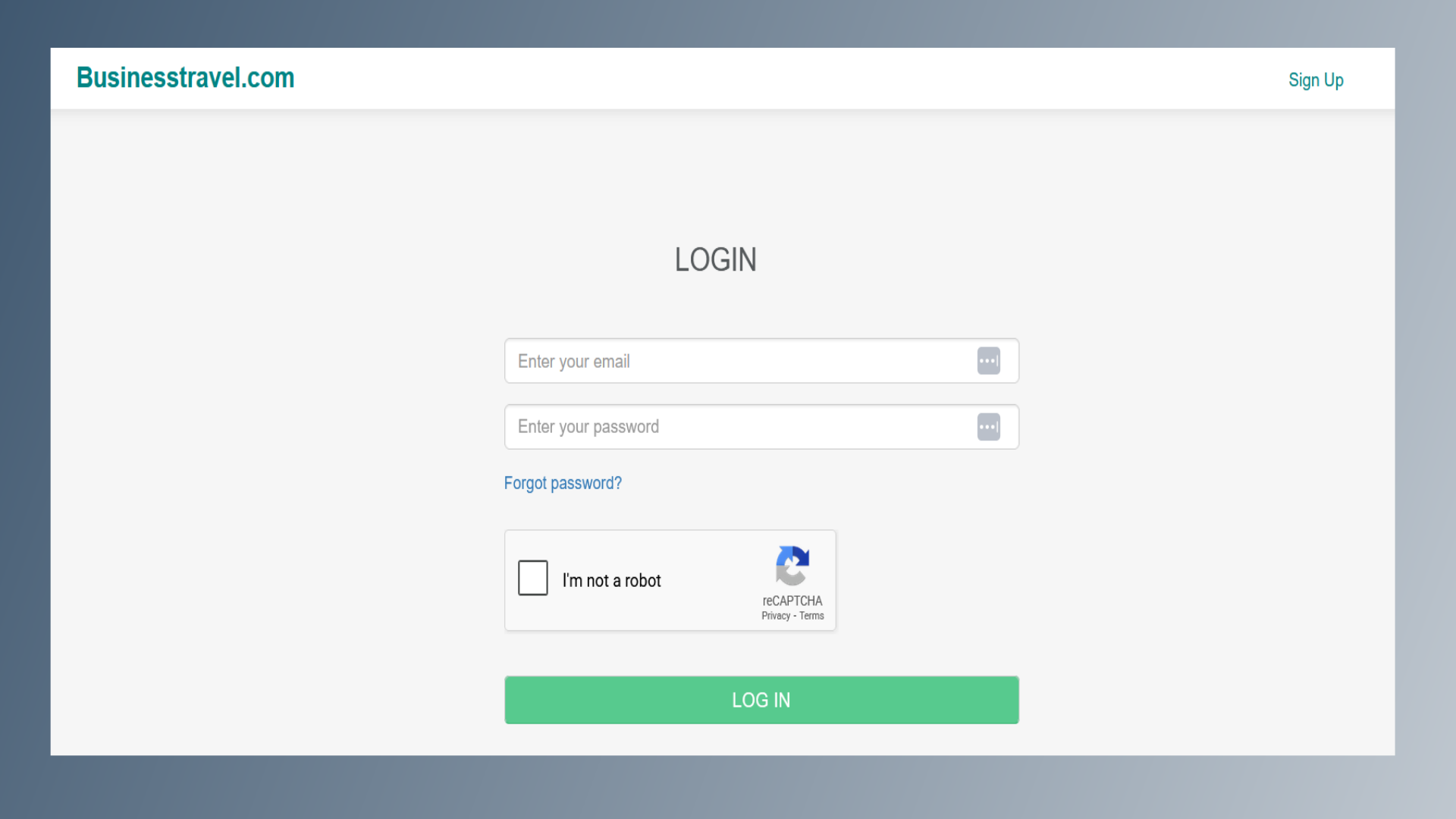
Go to the BusinessTravel.com website and Log in using your credentials (username and password).
2. Dashboard Page
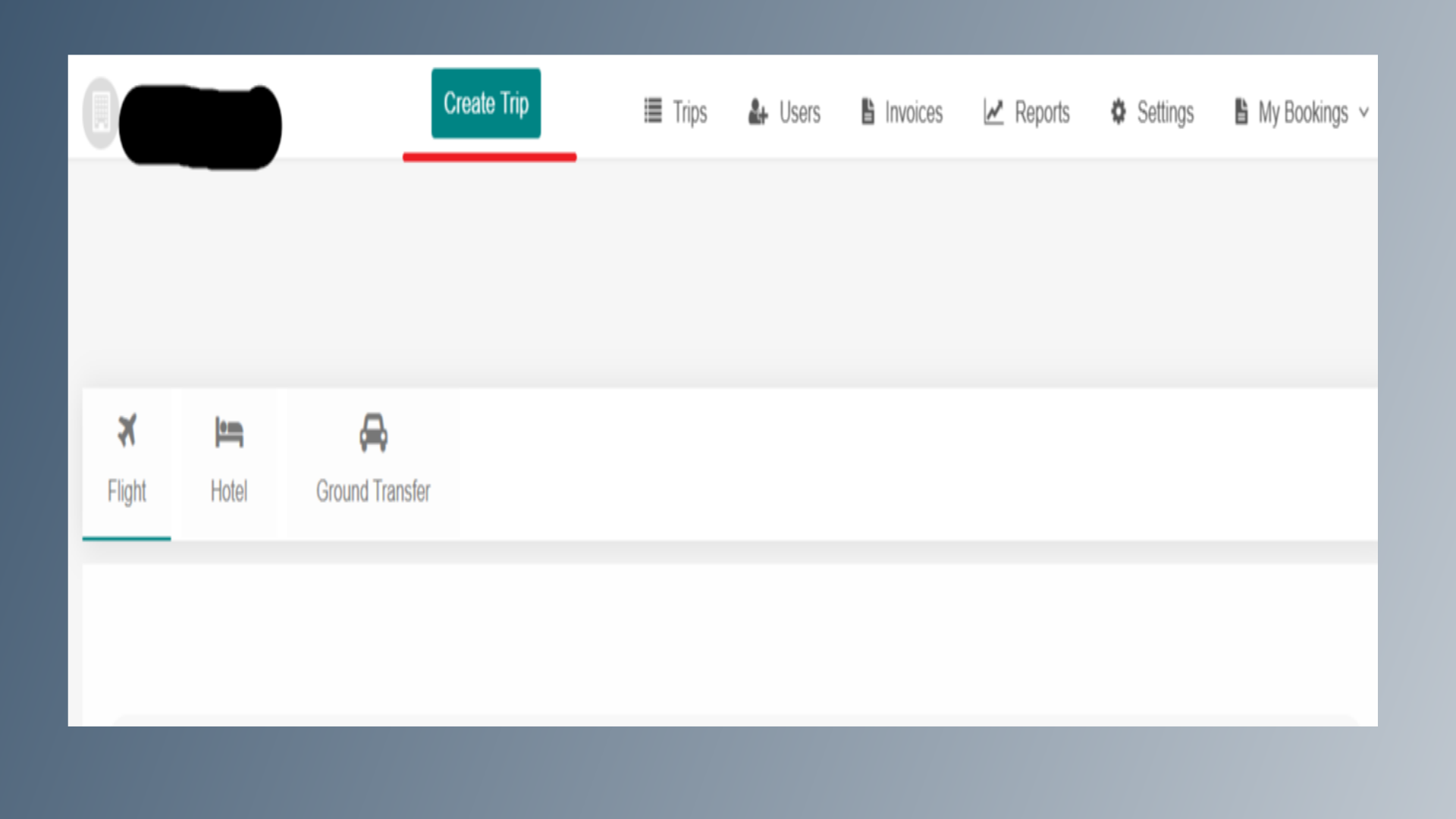
After logging in, you will be directed to the Dashboard page.

3. Create Trip
From the Dashboard, click on the Create Trip option.
4. Trip ID & Name
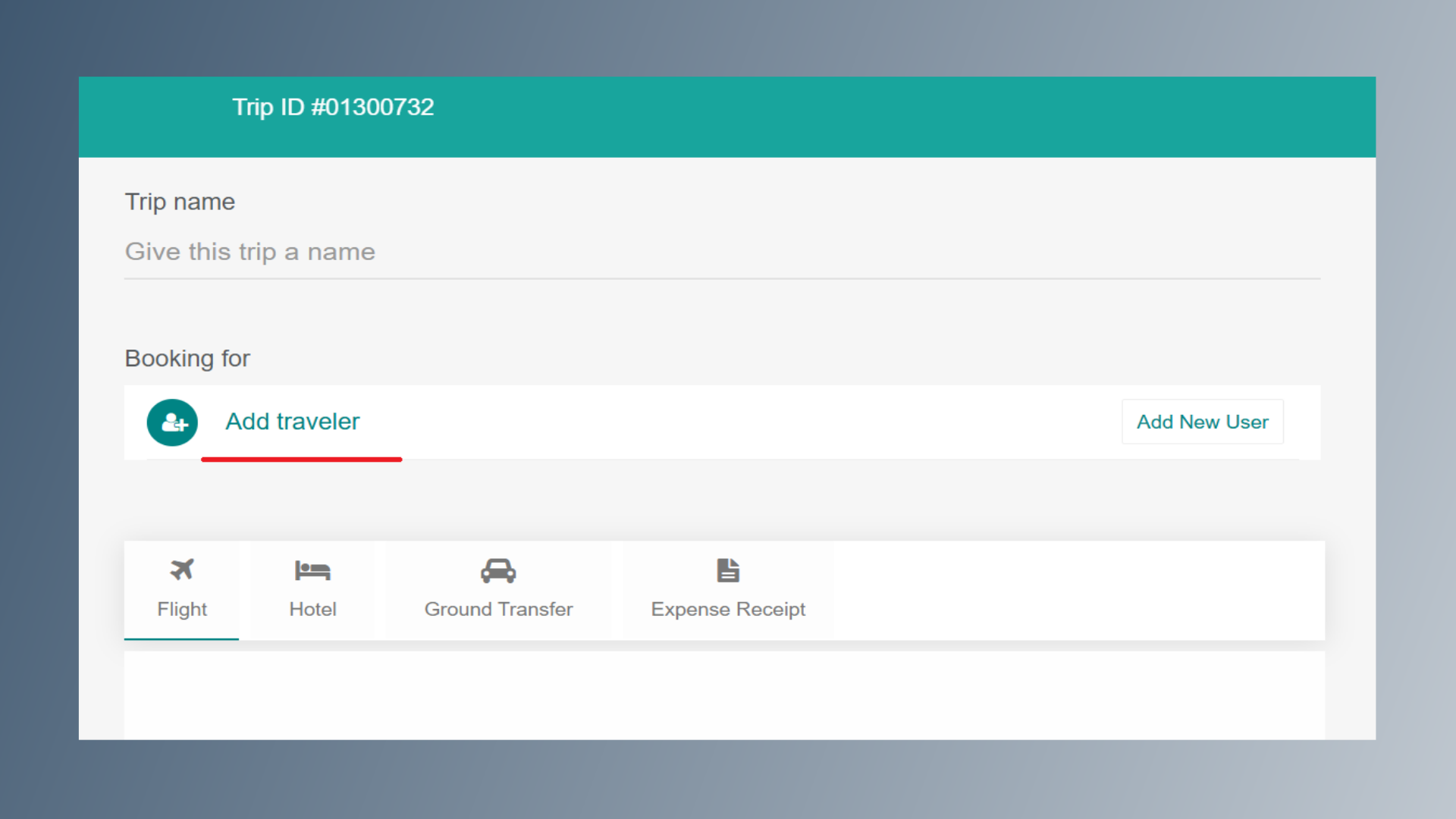
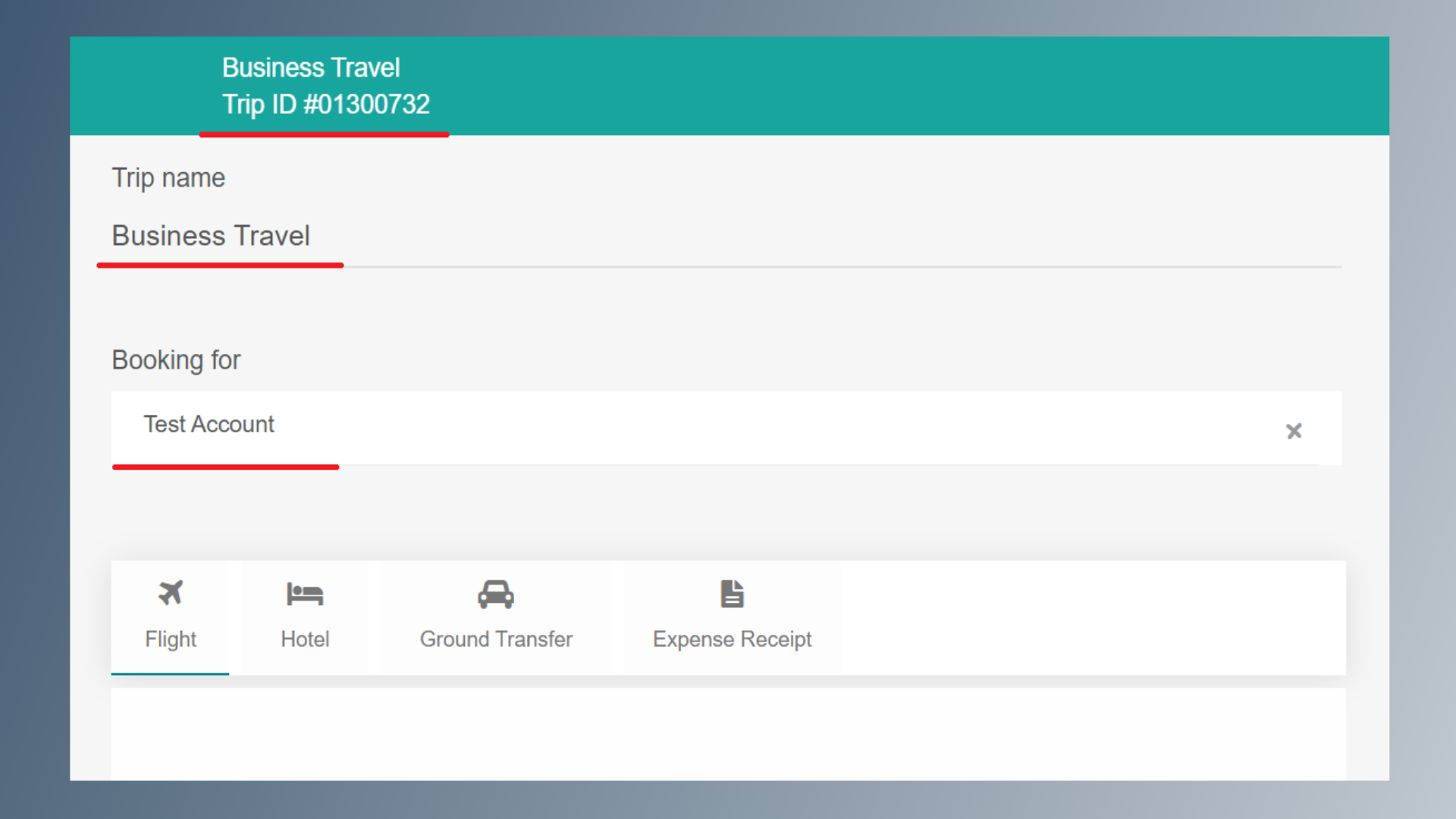
On the Create Trip page: The system will automatically generate a Trip ID number. Below the Trip ID, enter the Trip Name (Event/Purpose of Travel). Examples: New York Travel Expo 2026, Denver Travel Expo 2026

5. Add Traveler Name
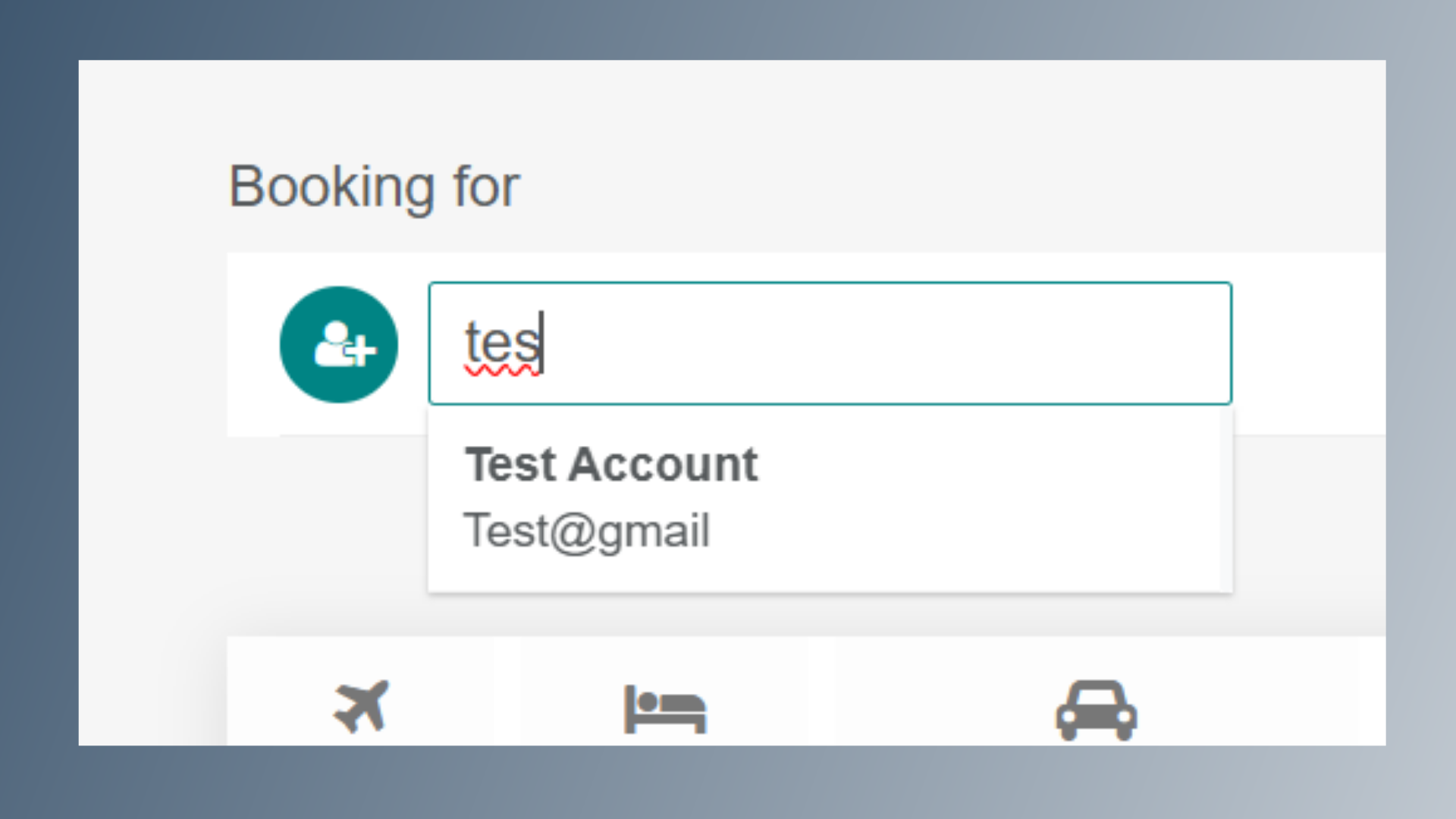
Click on Add Traveler. Start typing the employee’s name. A dropdown list will appear under the Booking For option. Select the correct employee name from the list.
6. Name Selection
Here is an example.
7. All details
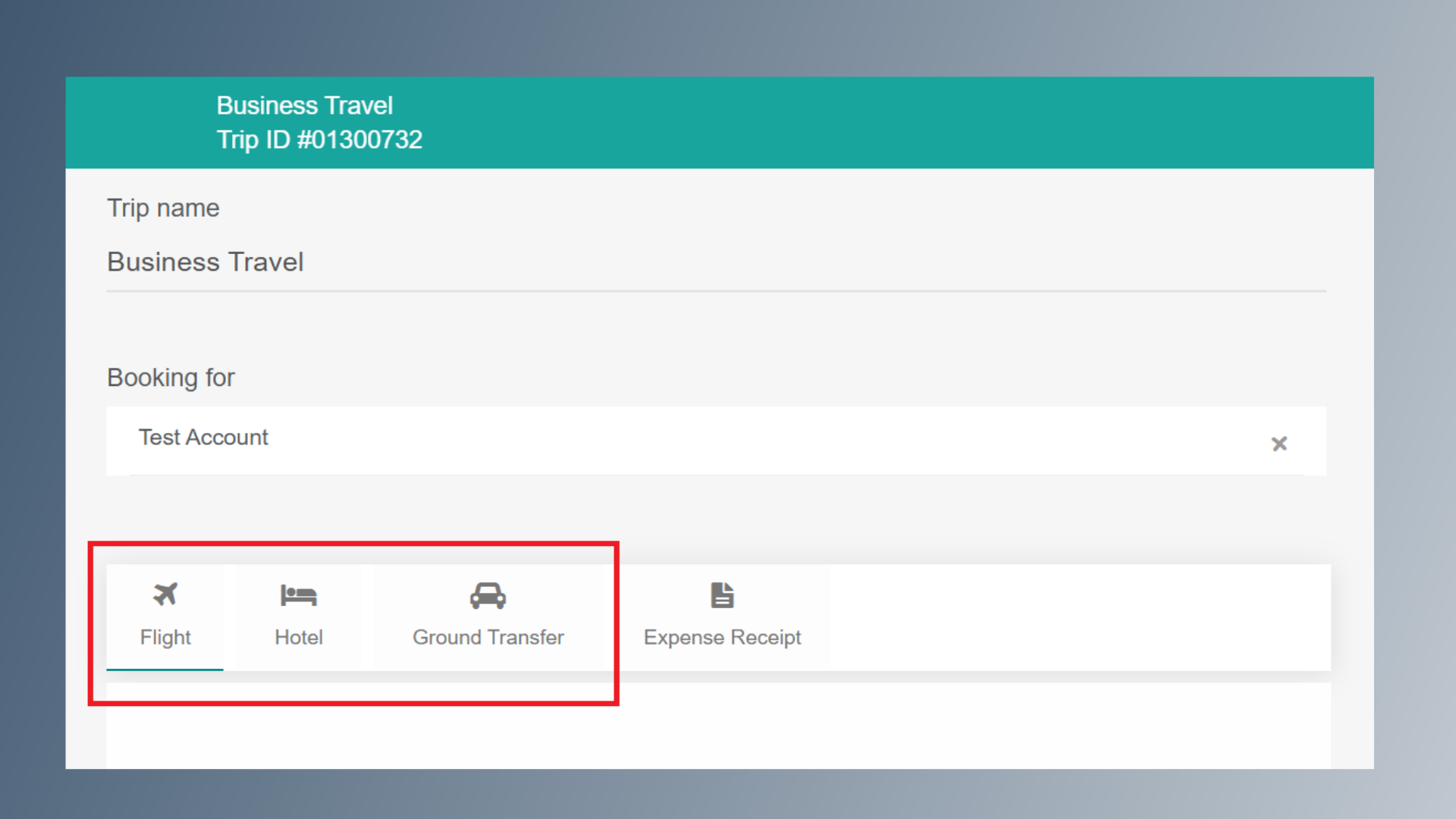
Once you update the Trip Name and select the traveler's name, it should look like this.
8. Flight, Hotel& Car
After confirming the details, continue by selecting your desired booking option — Flight, Hotel, or Ground Transfer.