How to make a Hotel Booking
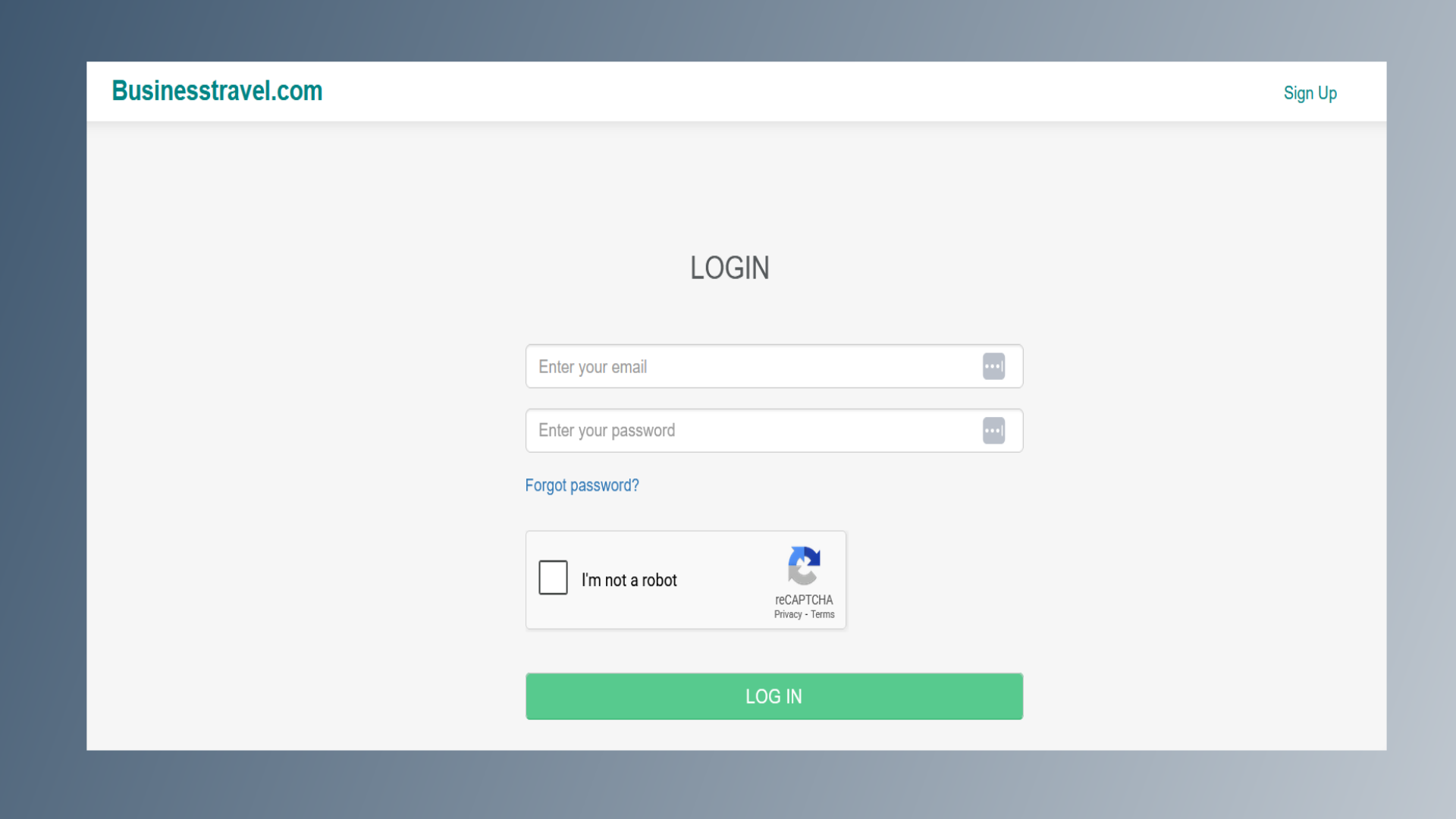
1. Log in to the BusinessTravel.com website using your credentials.
Log in to the BusinessTravel.com website using your credentials.
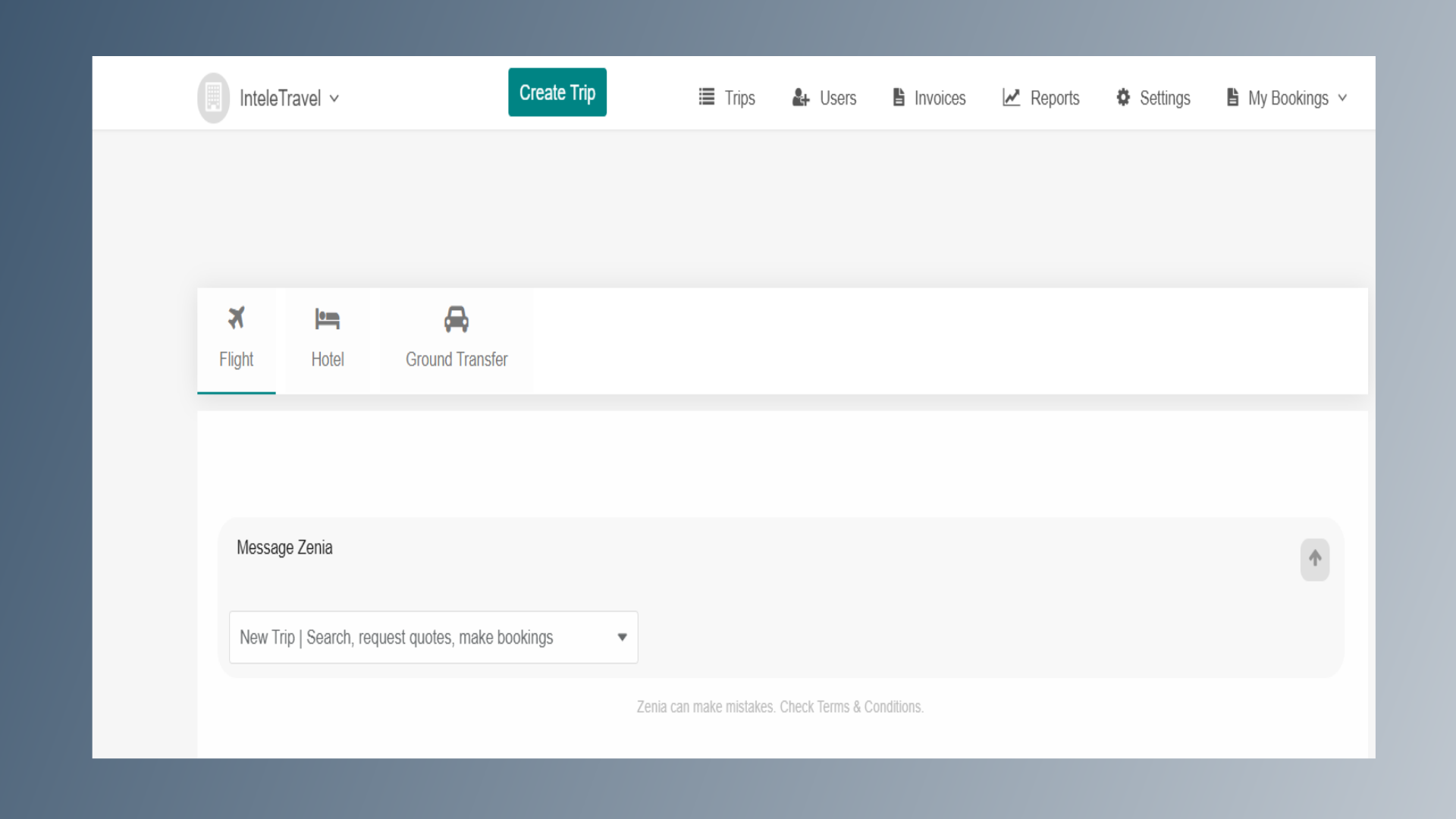
2. Home Page
After logging in, you will be directed to the home page.
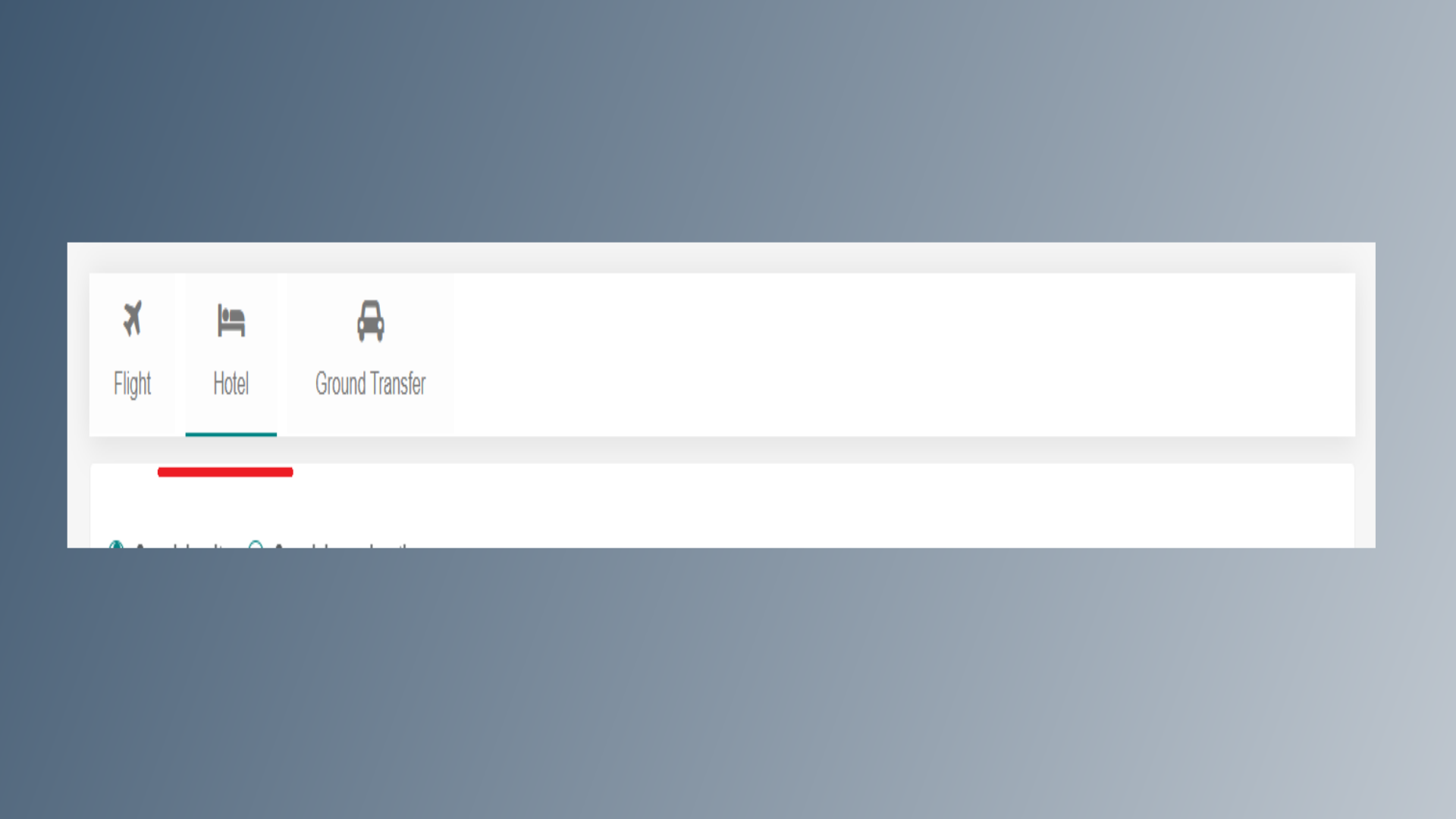
3. Click on the Hotel option.
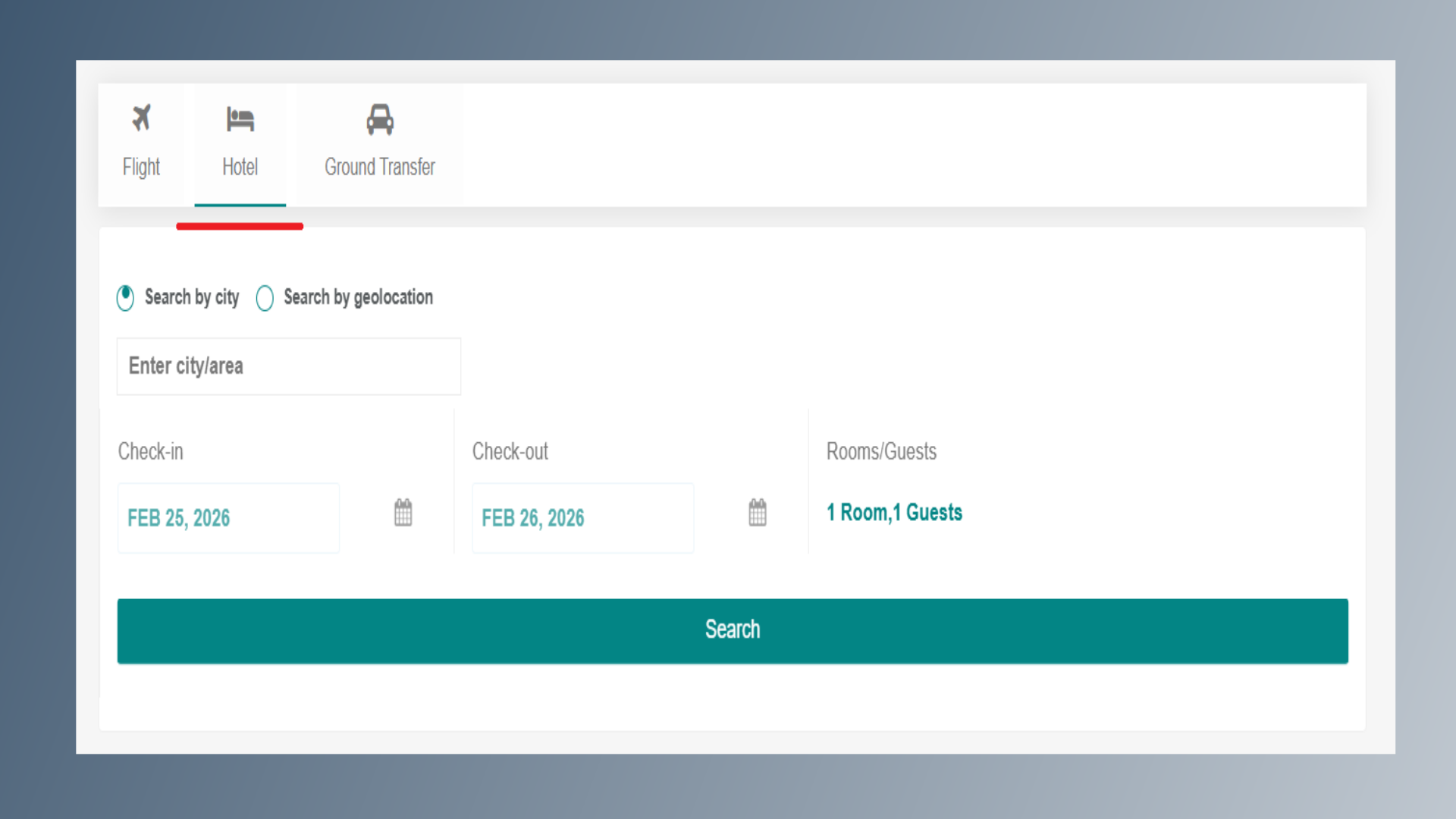
Click on the “Hotel” option.
4. Hotel Search Page
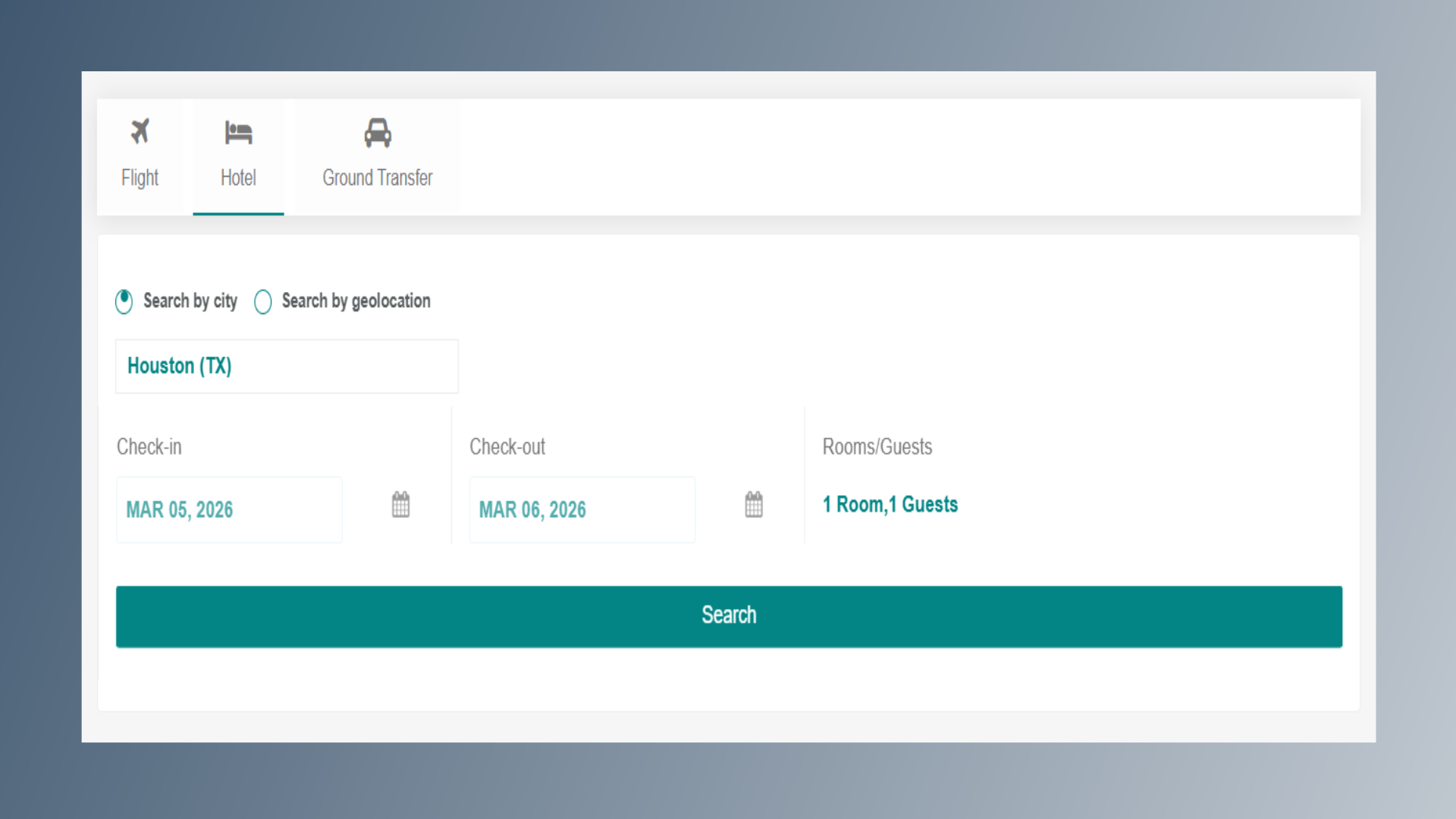
You will see two search options: Search by City or Search by Geolocation Select the option that is most suitable. Enter Search Details. Enter the Location (city or geolocation). Select the Check-in and Check-out dates as per the travel plan. Choose the number of rooms and guests. Click on the Search button.
5. Example
Here is the Example
6. Availability Page
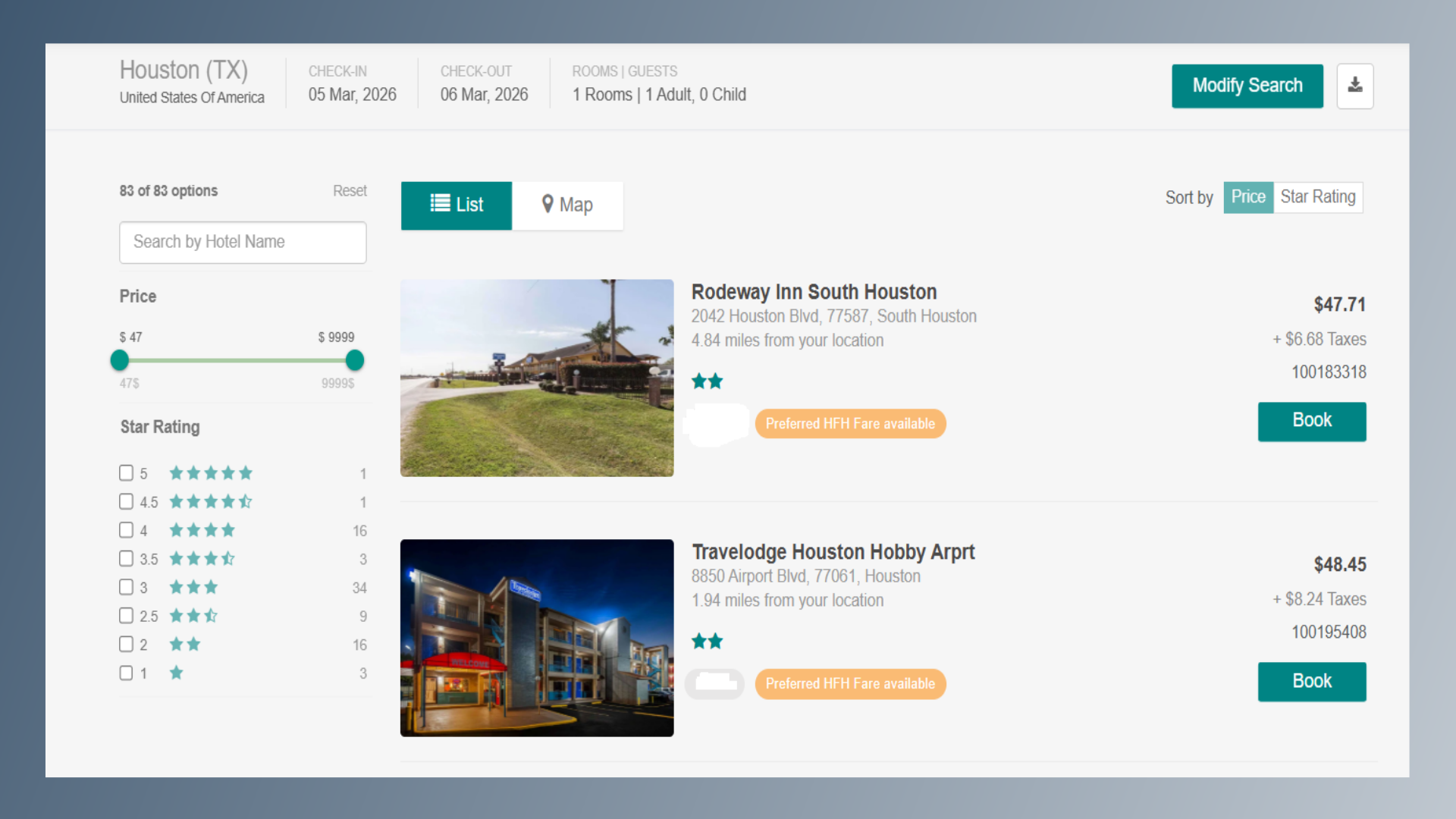
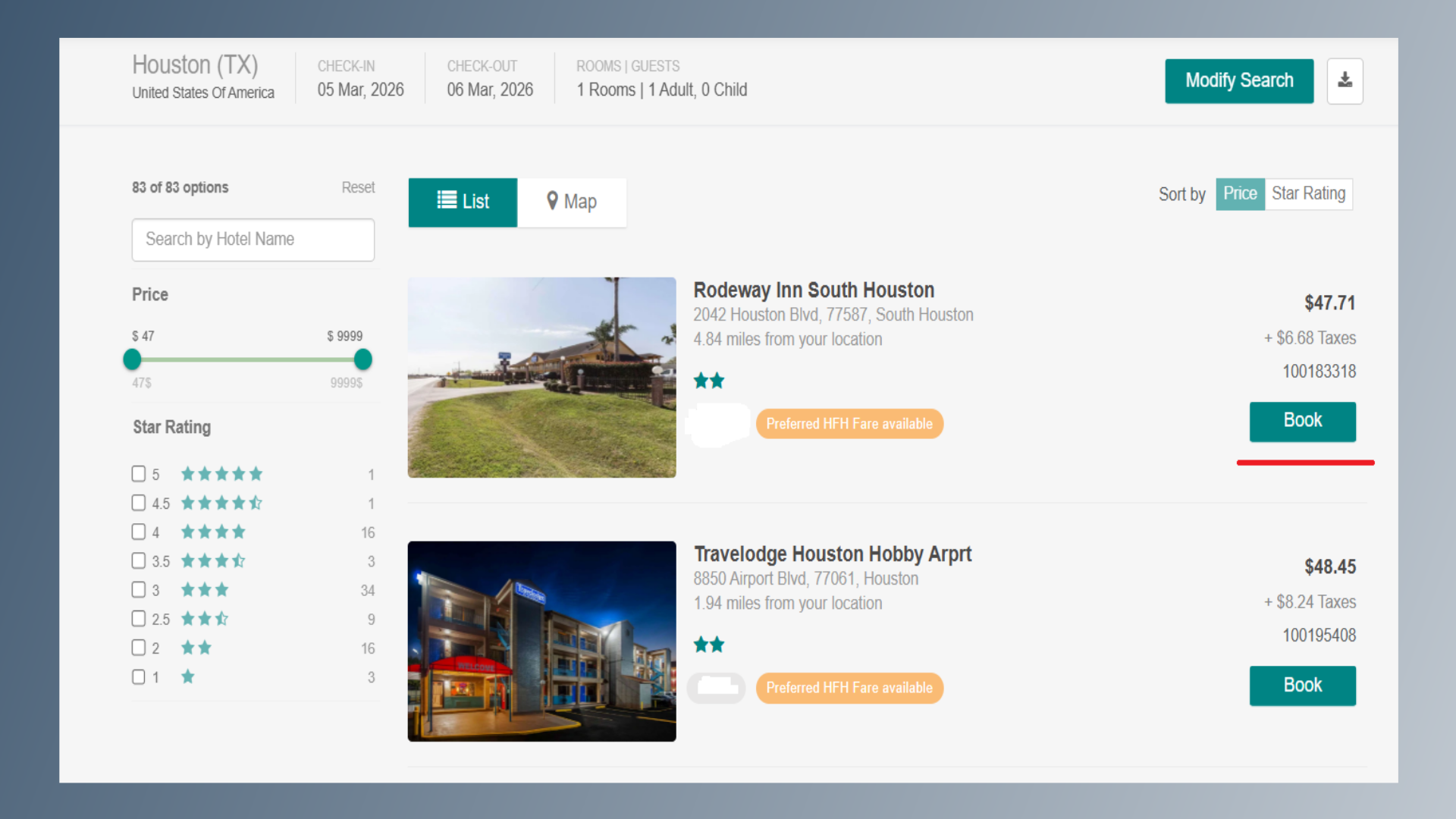
The system will display all available hotels for the selected city/location.
7. Search By Hotel Name
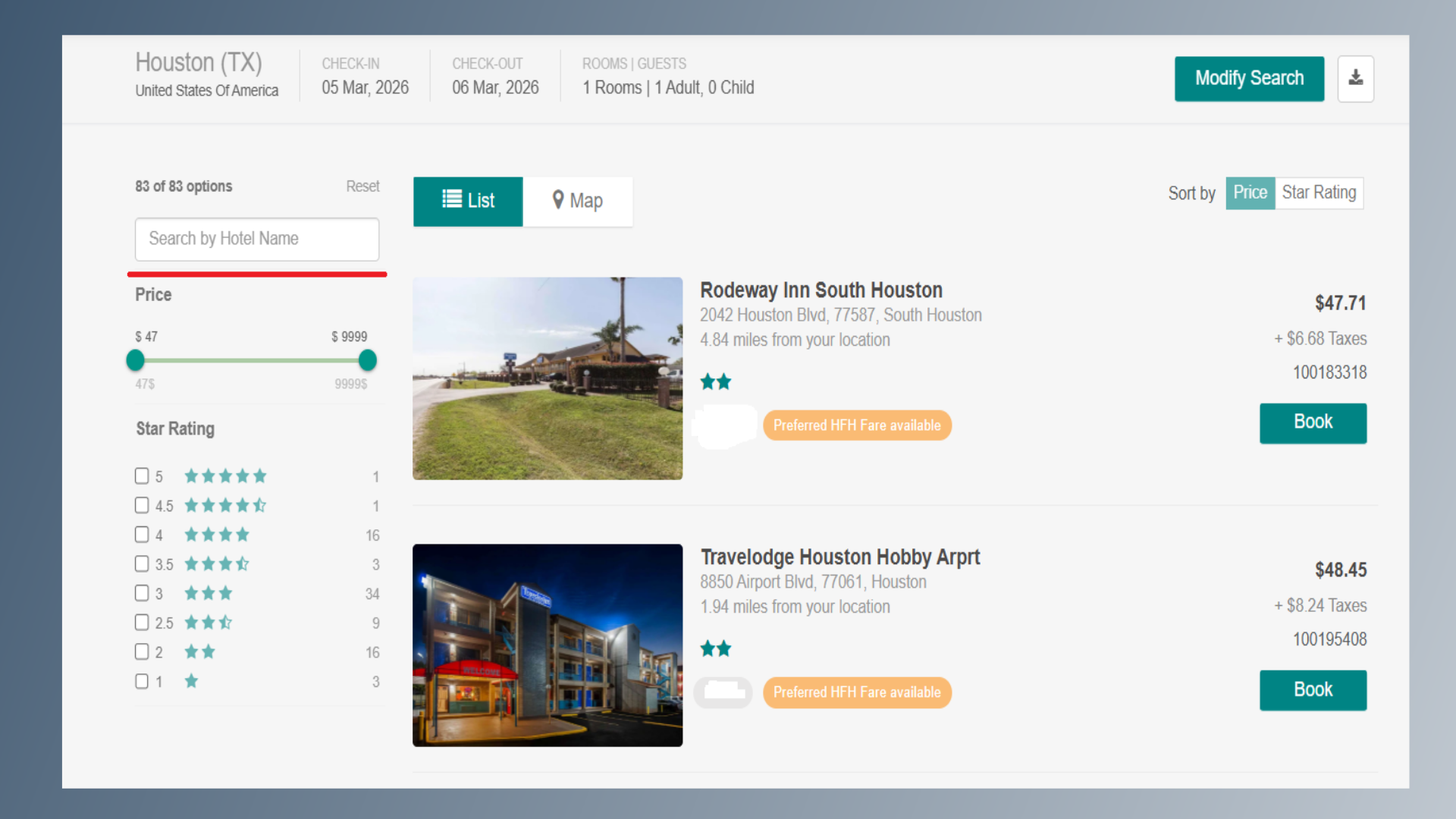
Choose a property from the displayed results, or If searching for a specific hotel, enter the property name under “Search by Hotel Name.”
8. Book Option
Click on the Book option to view available room types.
9. Room Availability
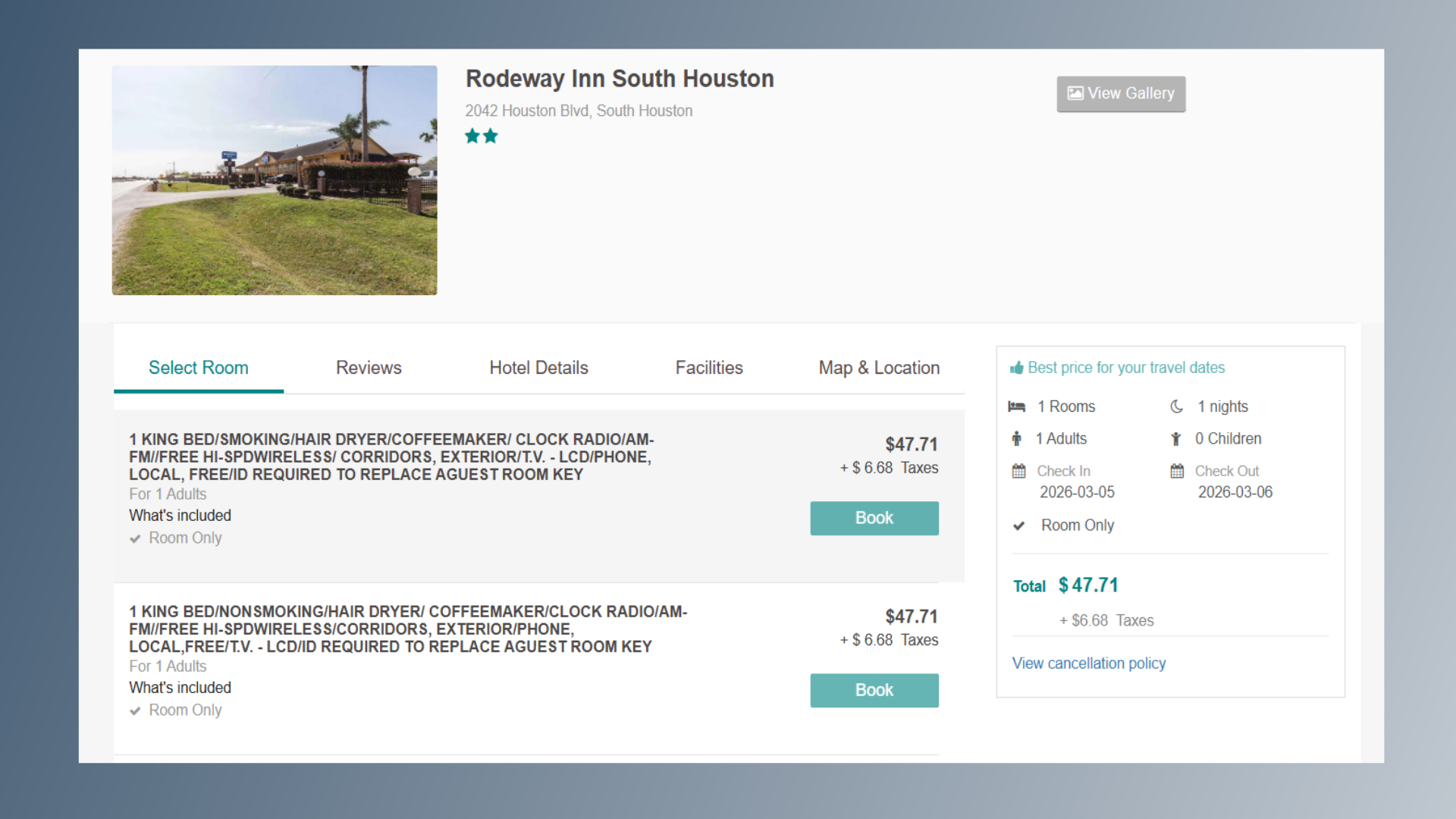
After that, click on the desired room type to view the total price, taxes, and cancellation policy.
10. Room Book Option
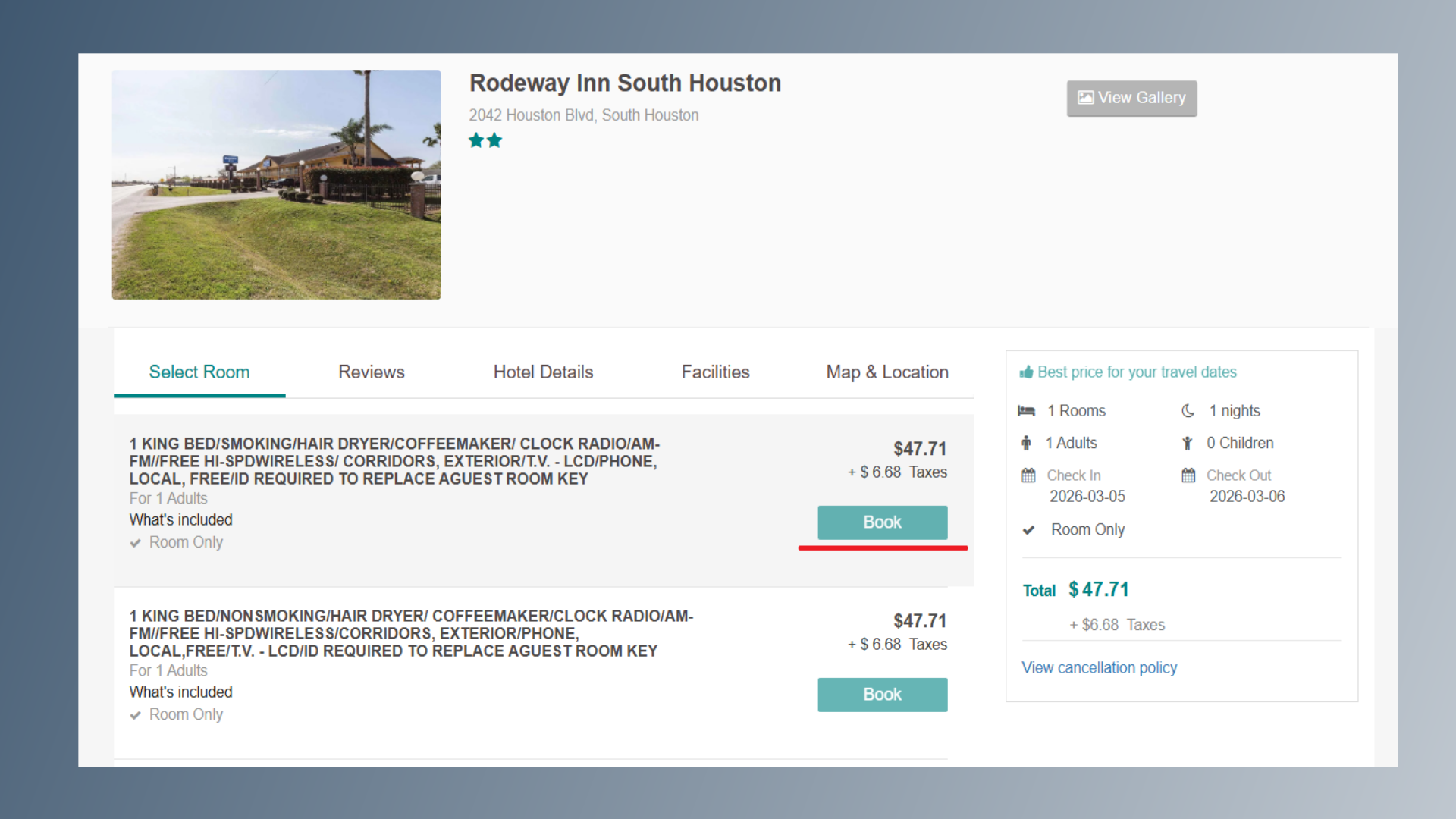
Click on the Book button for your selected room type.
11. Contact Details
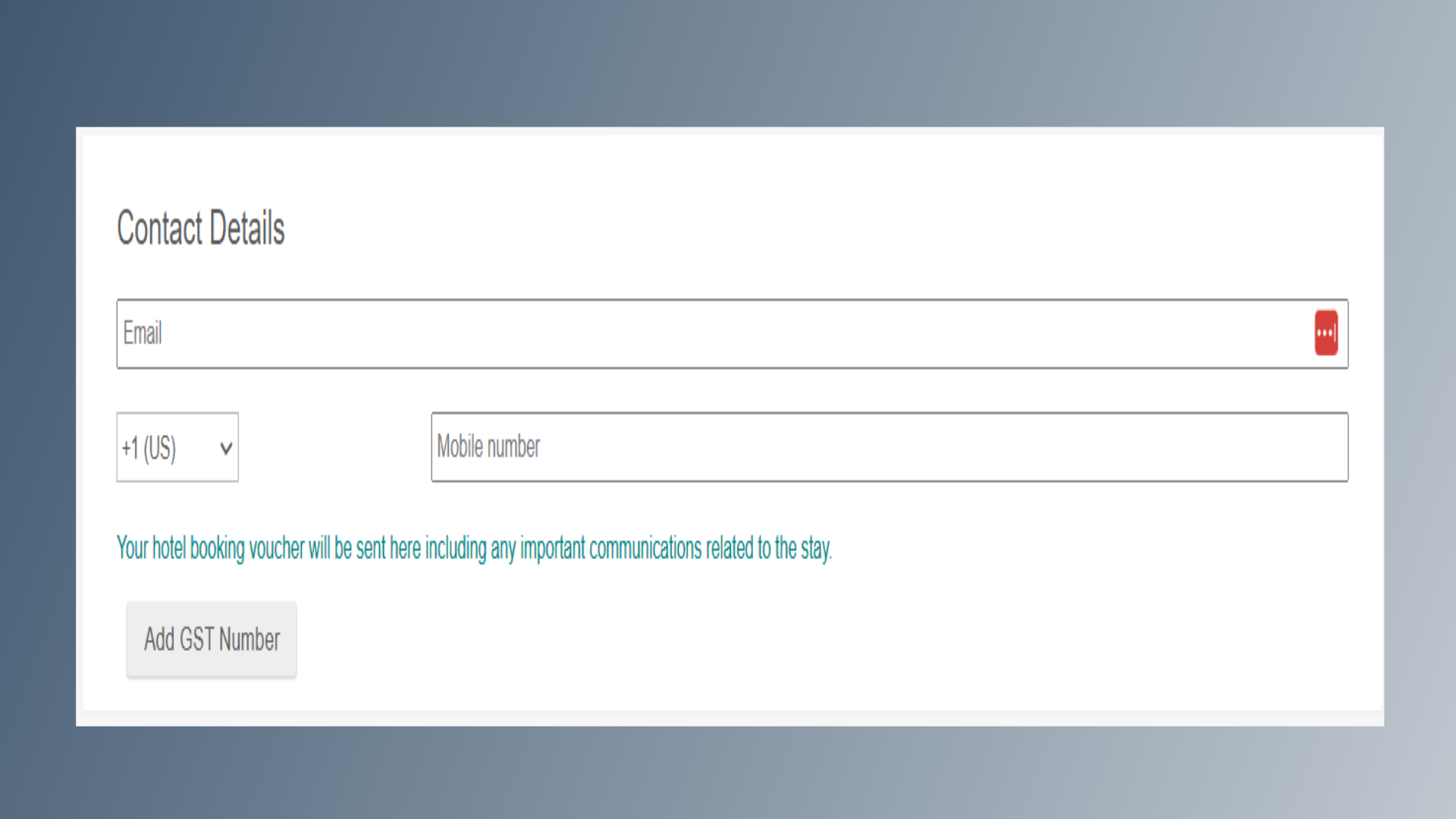
Provide the required contact details, including email address and mobile number.
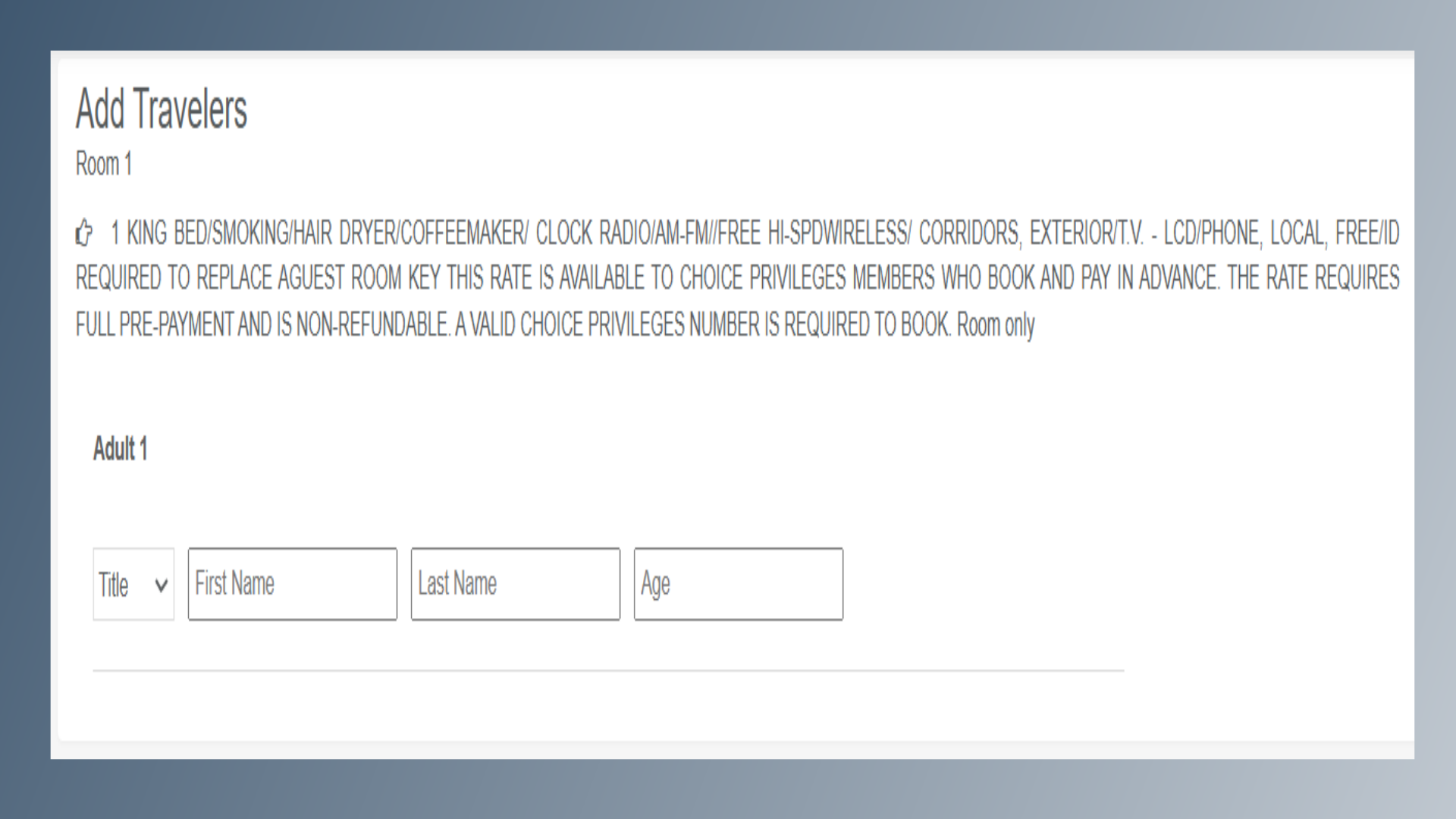
12. Add Traveler details
Provide the Guest details
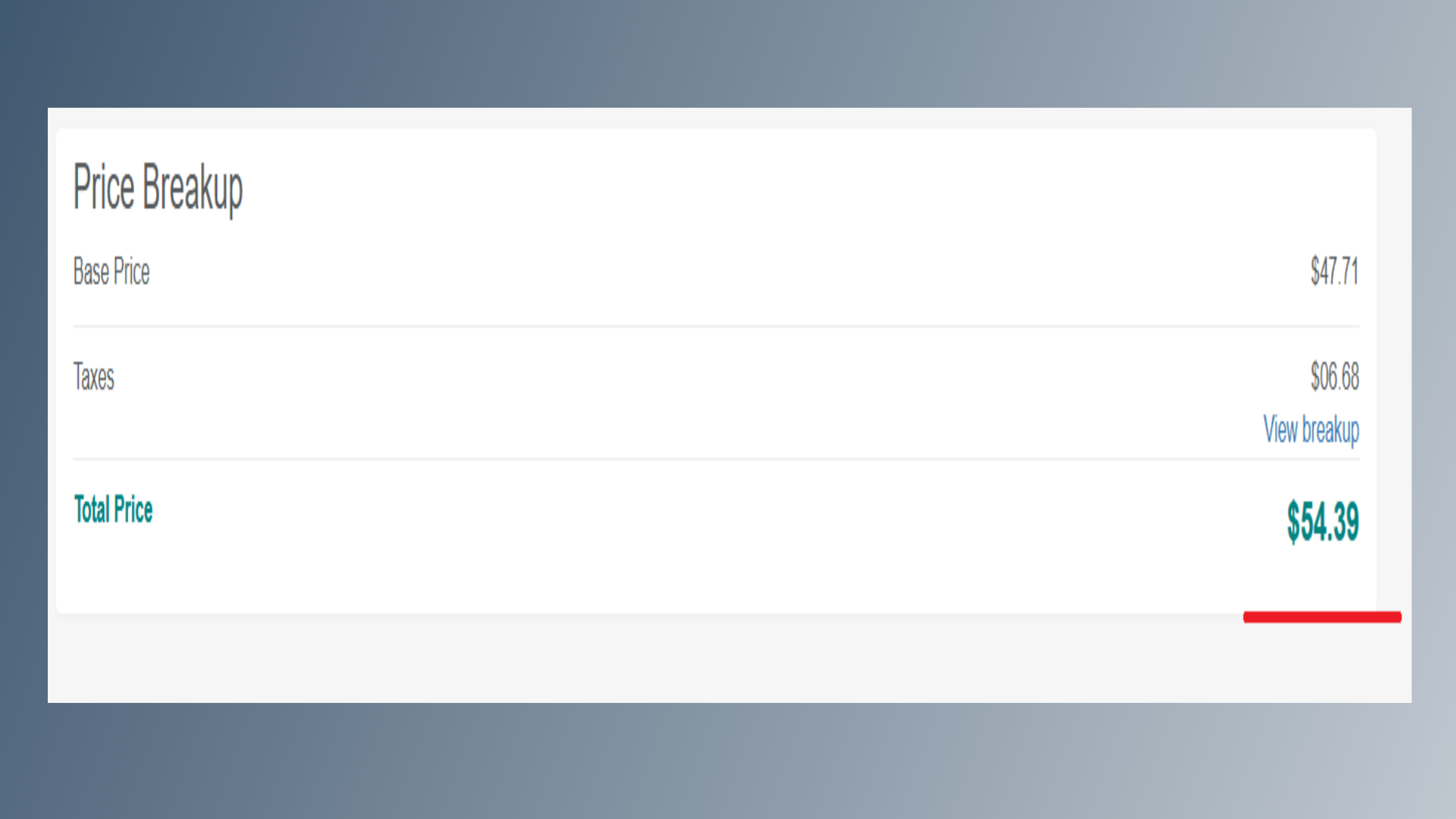
13. Price Details
At the bottom of the page, review the price details and fare breakup.
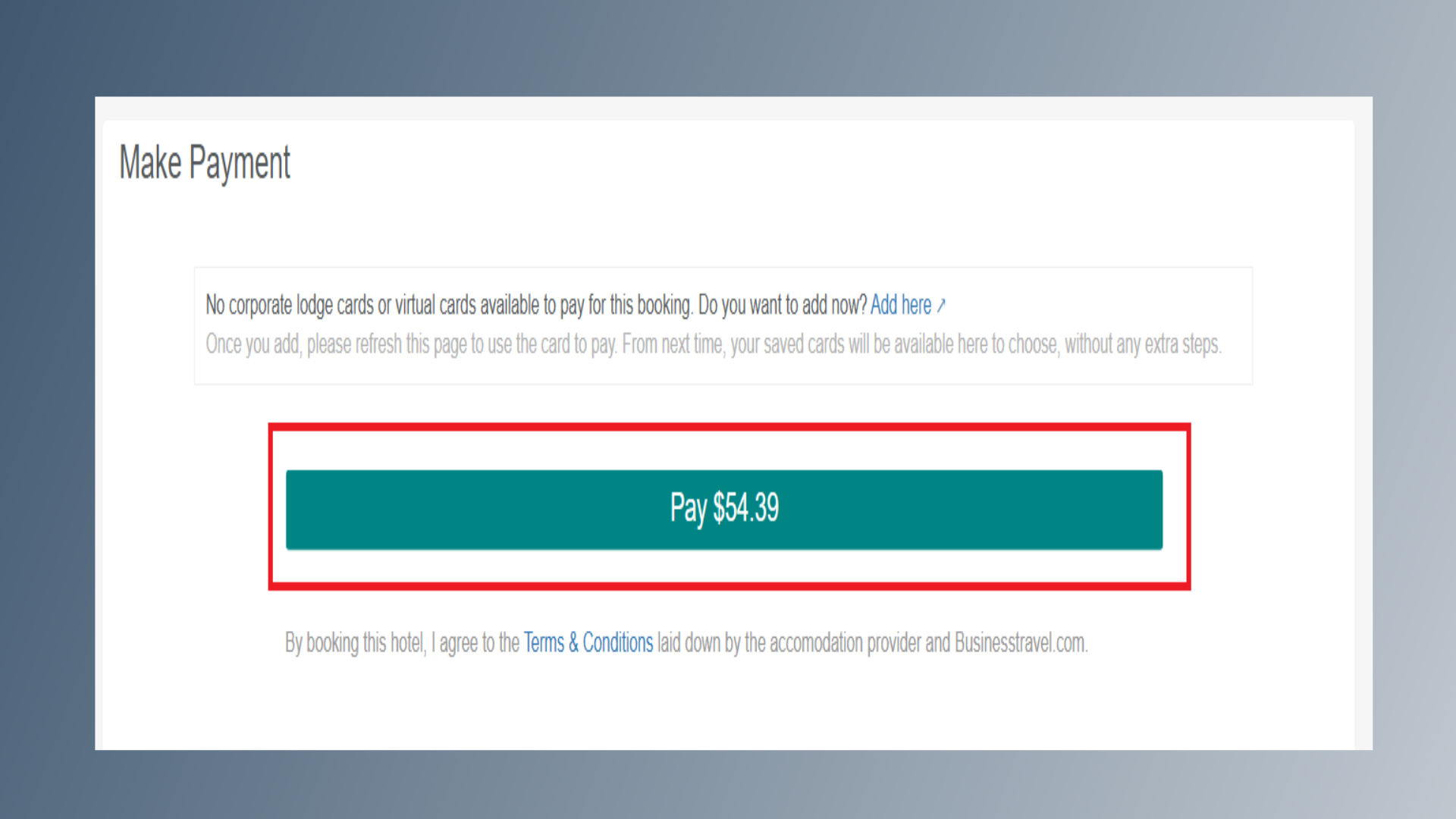
14. Make Payment
Click on the Pay button to complete the payment. Once the payment is successful, the booking will be confirmed, and a confirmation email will be sent immediately.