How to send an itinerary to an approver
1. Login Page
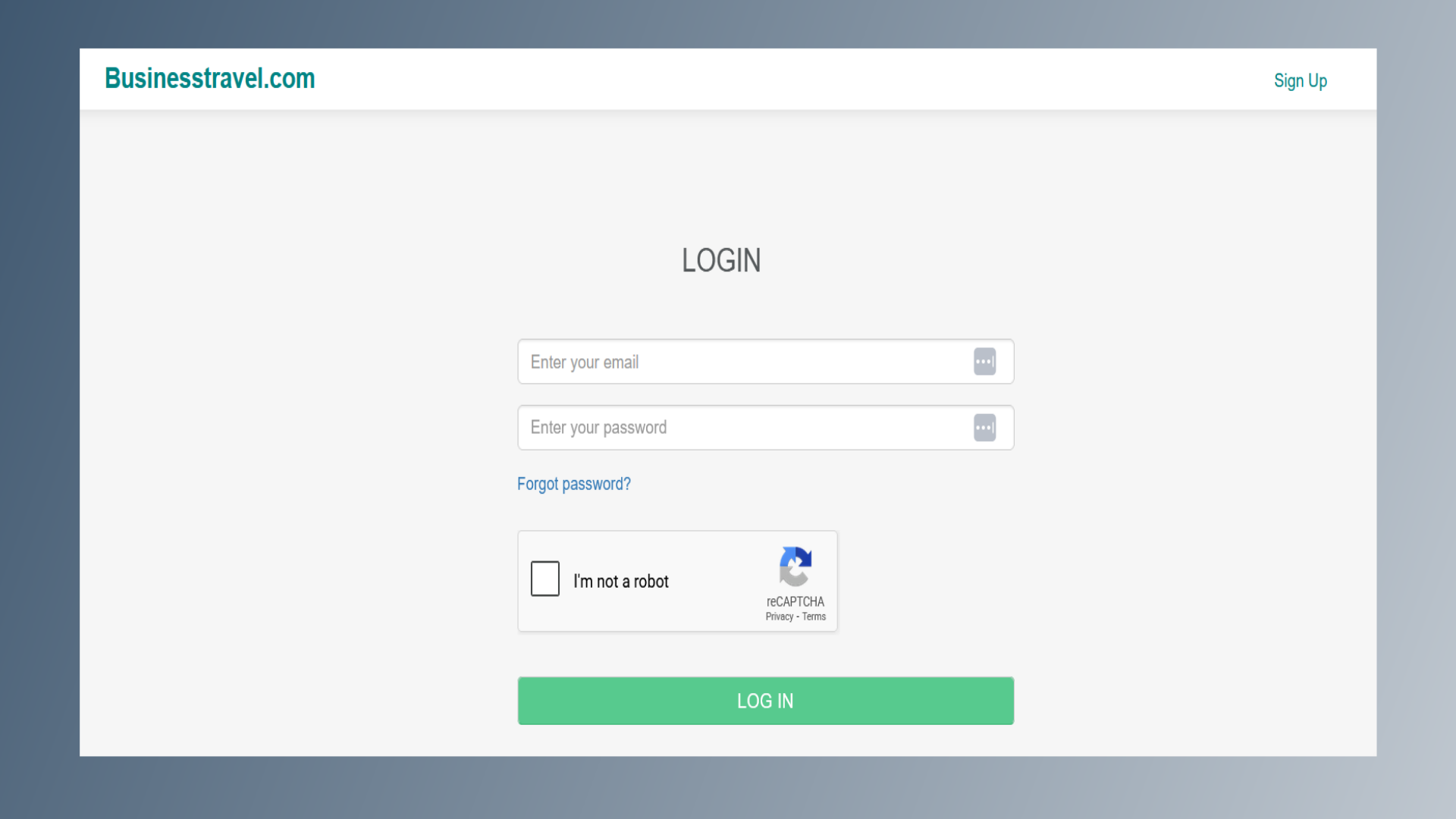
Log in to the BusinessTravel.com website using your credentials.
2. Dashboard
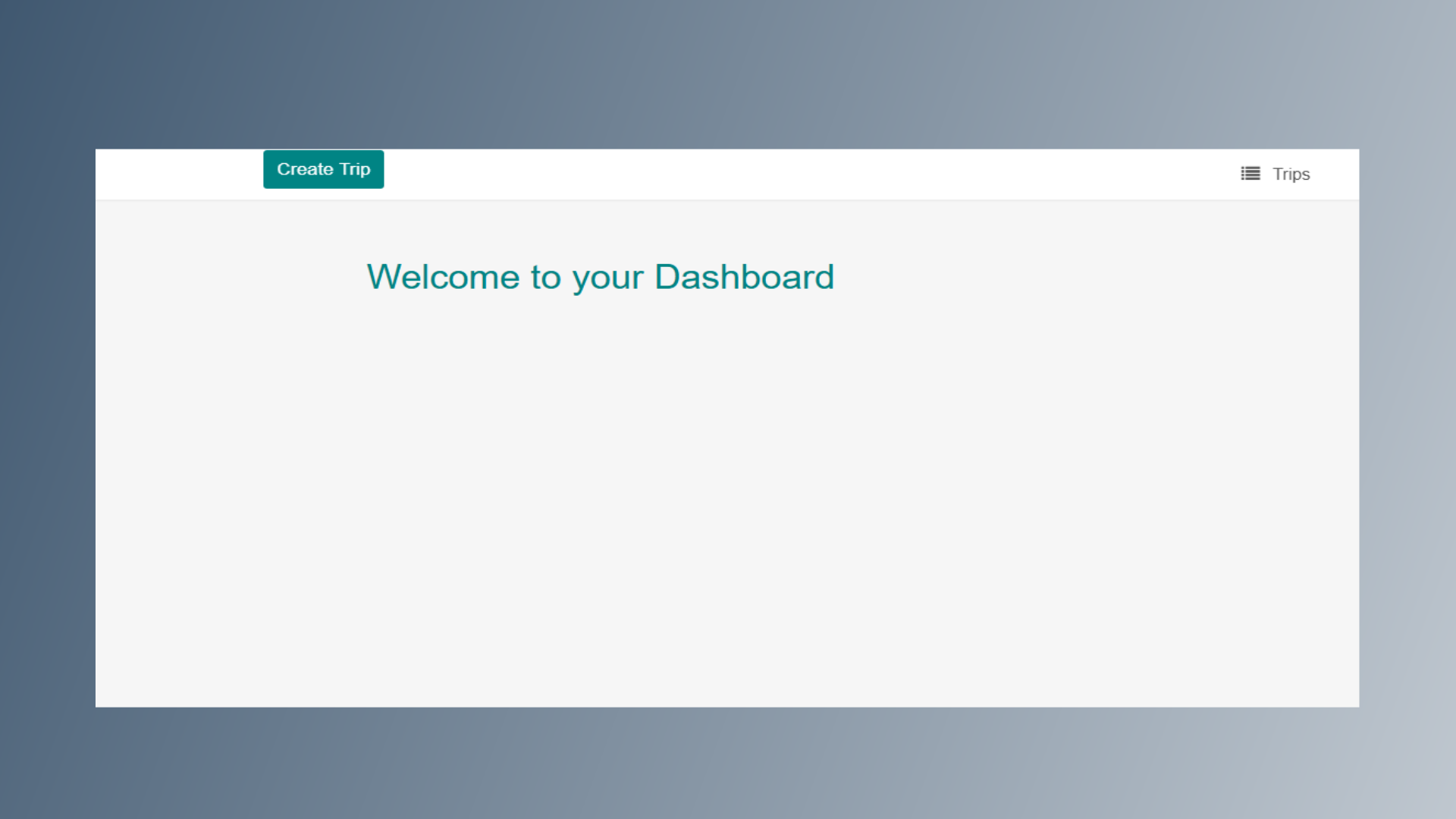
After logging in, you will be directed to the Dashboard page.
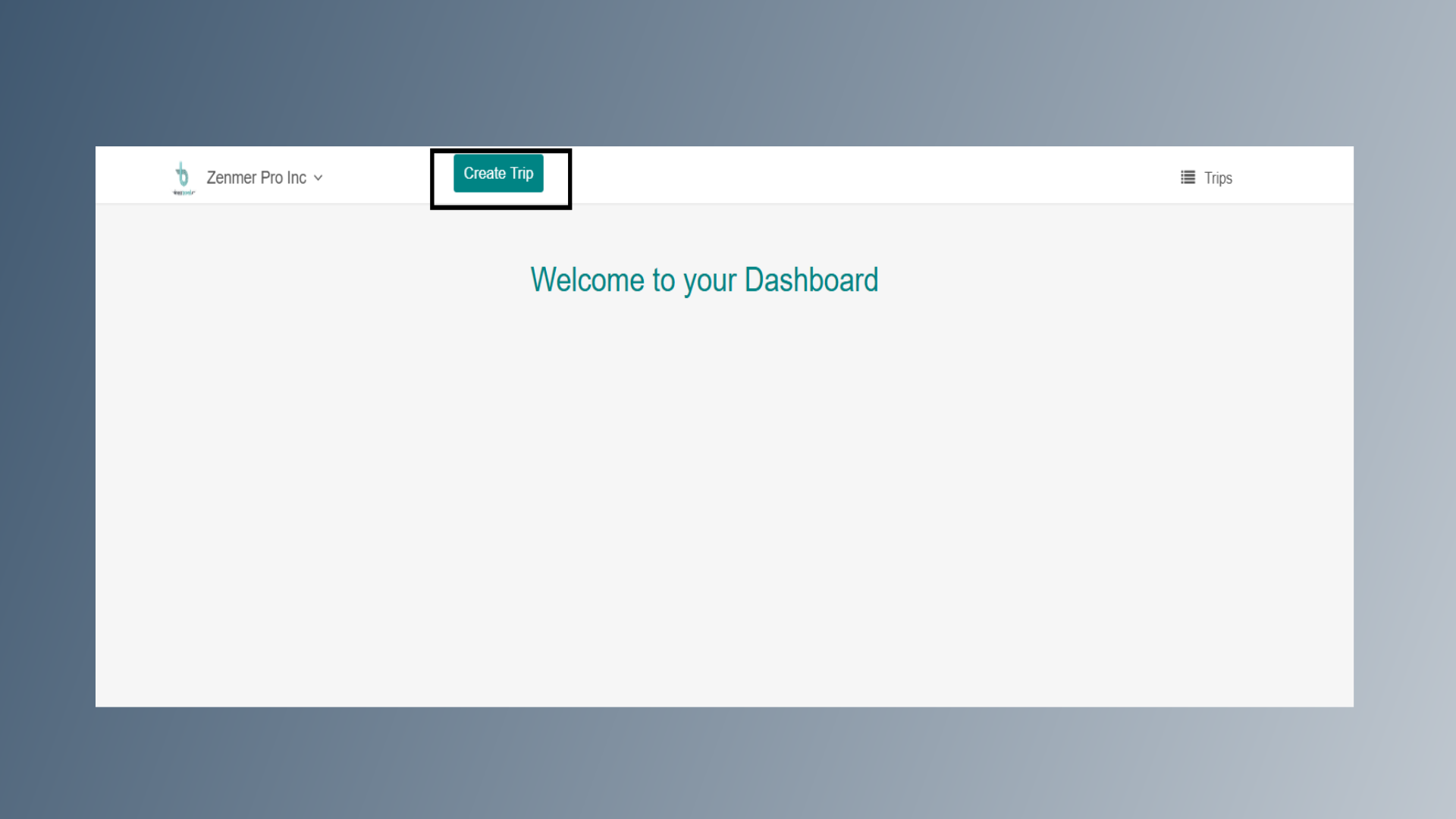
3. Create Trip
Click on Create Trip.
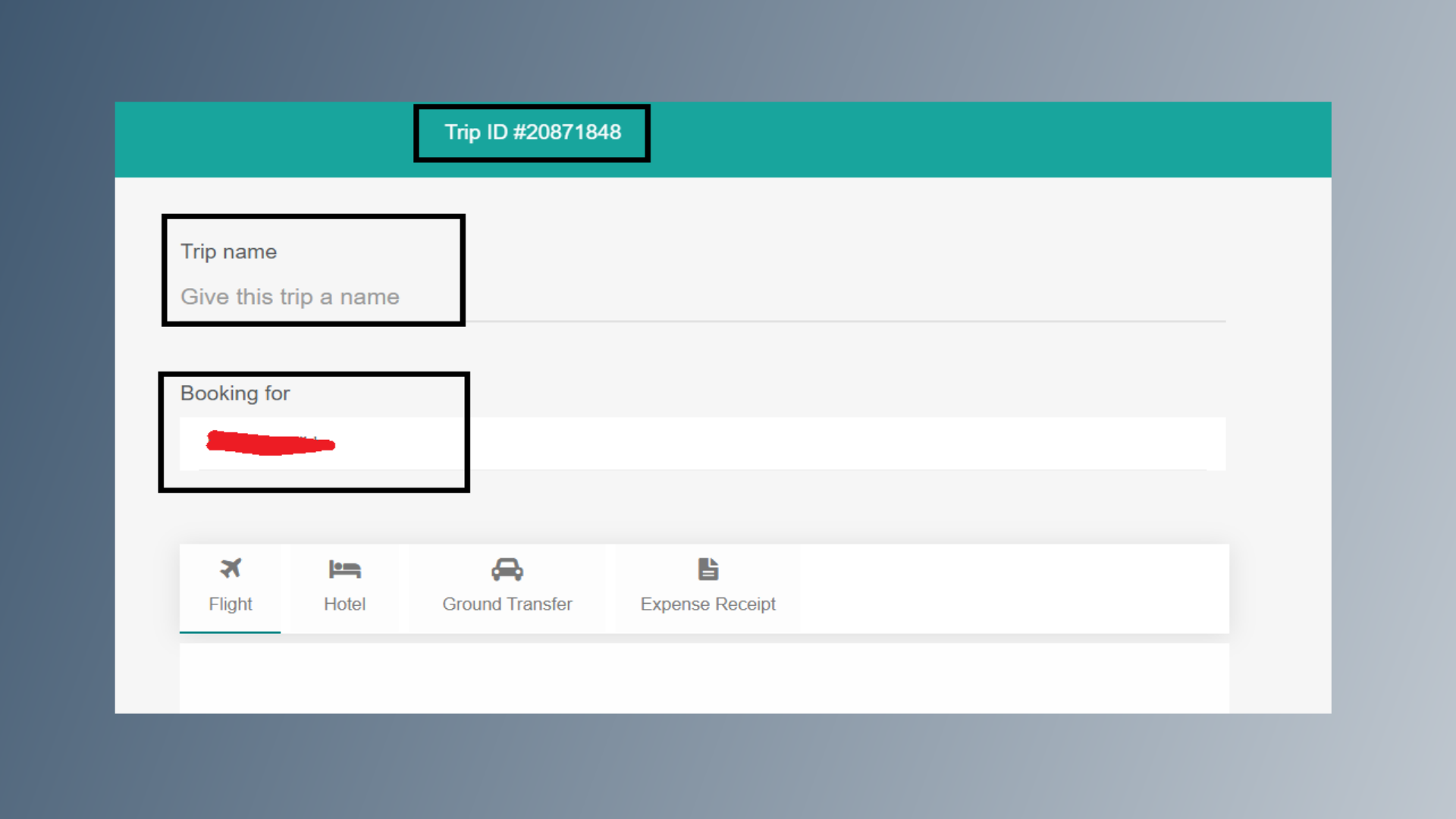
4. Trip Name
A Trip ID will be generated automatically at the top. Enter a Trip Name (if applicable). Your name will be automatically reflected under the Booking For field.
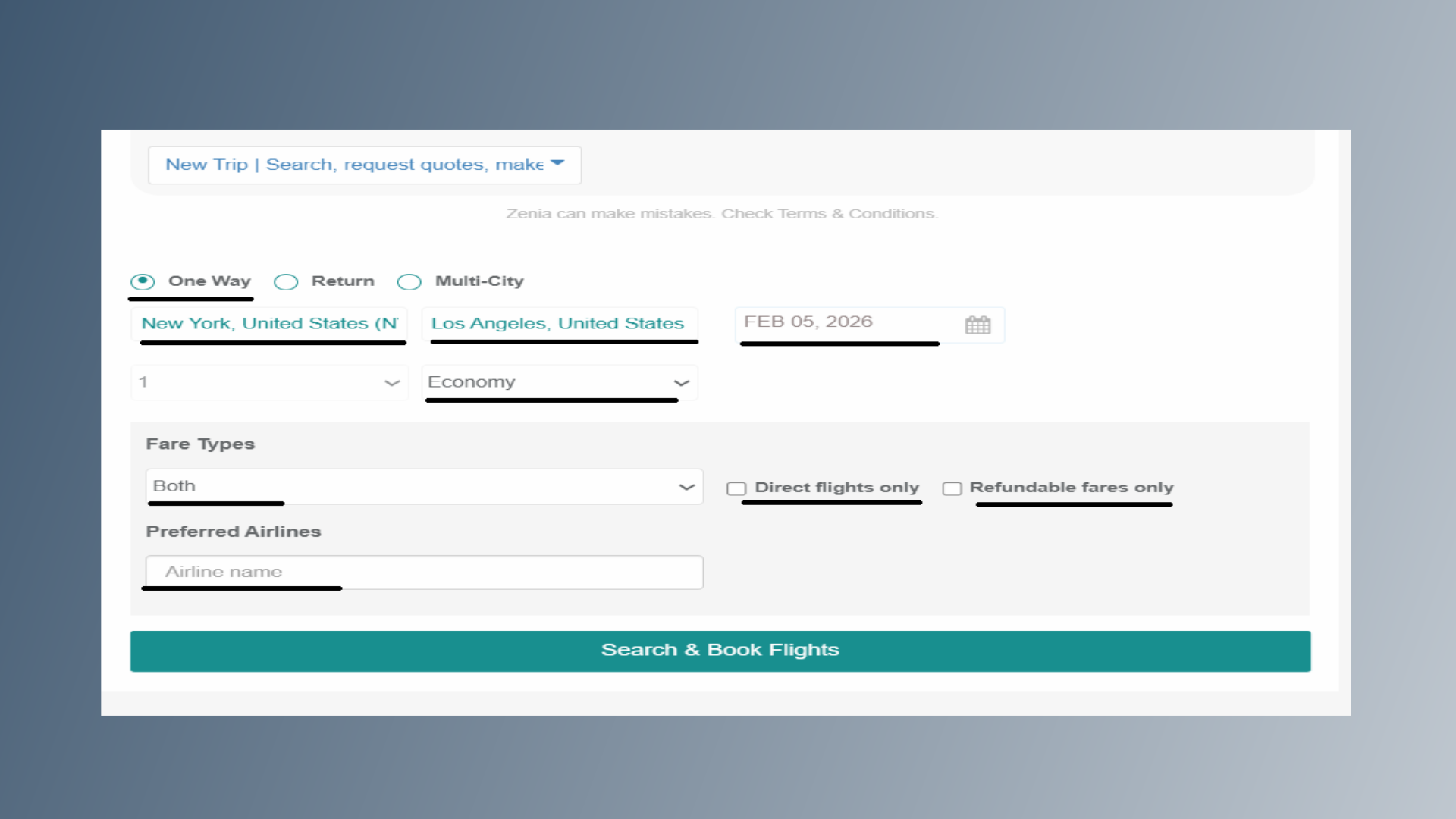
5. Update the details under Flight Options, including
Update the details under Flight Options, including: Trip type: One-way, Return, or Multi-city Origin and Destination Travel Date Cabin Class Fare Type (Both, Regular Fares, or Negotiated Fares) Direct Flights or Refundable Fares only (if required) Preferred Airline (if any)
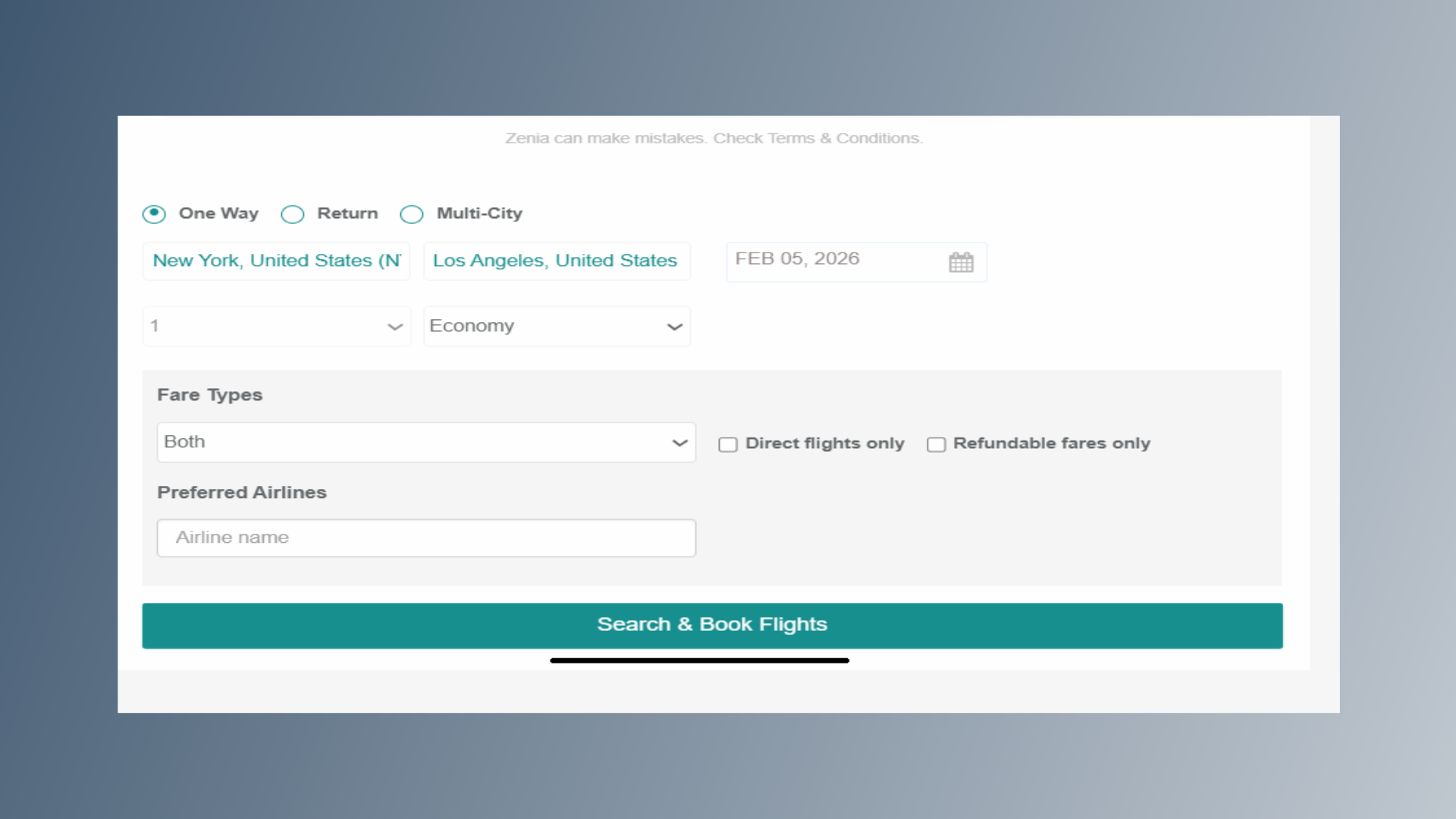
6. Search & Book Flight
Click on Search & Book Flight.
7. Flight availability
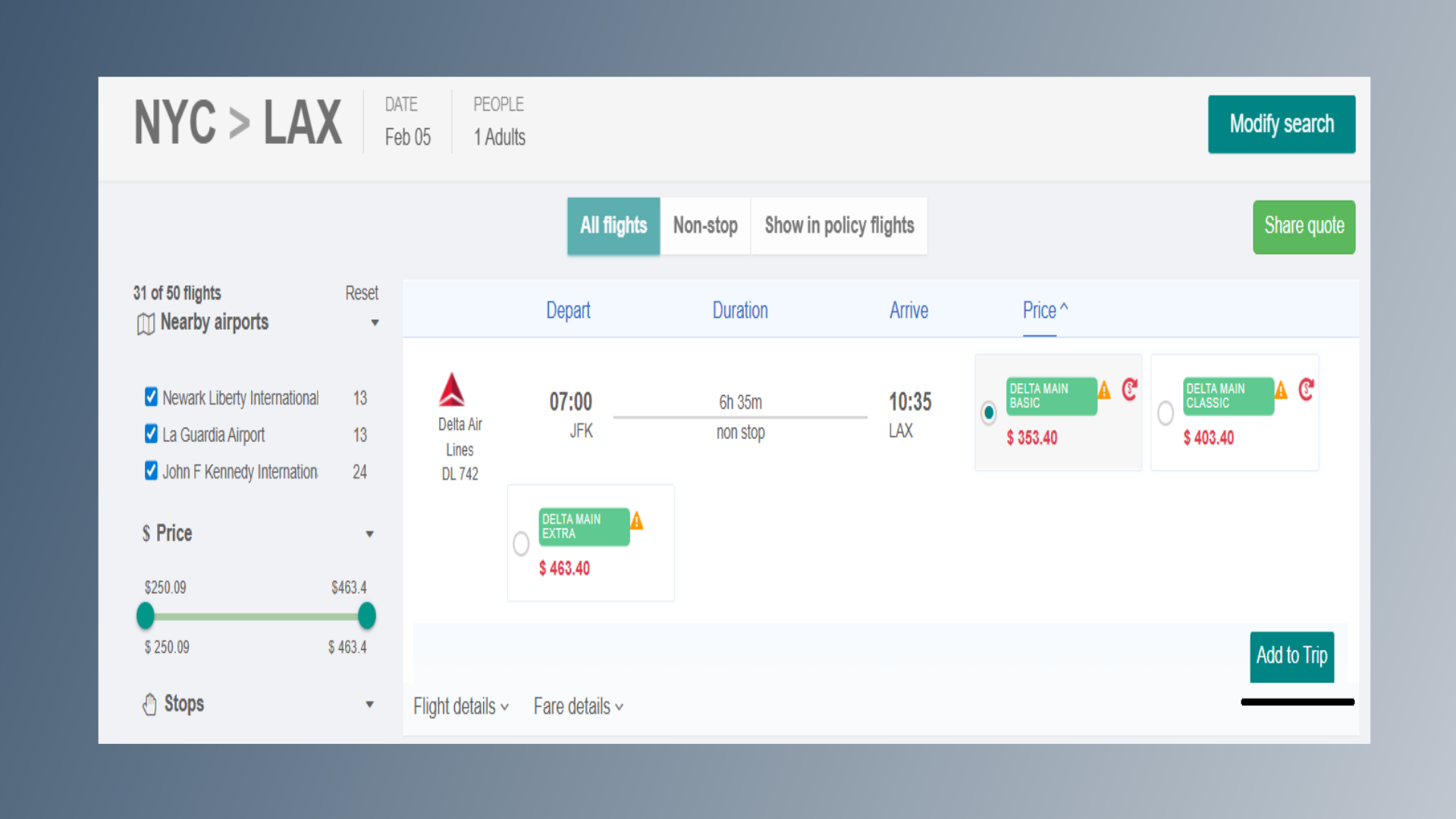
Flight availability will be displayed based on your selected preferences.
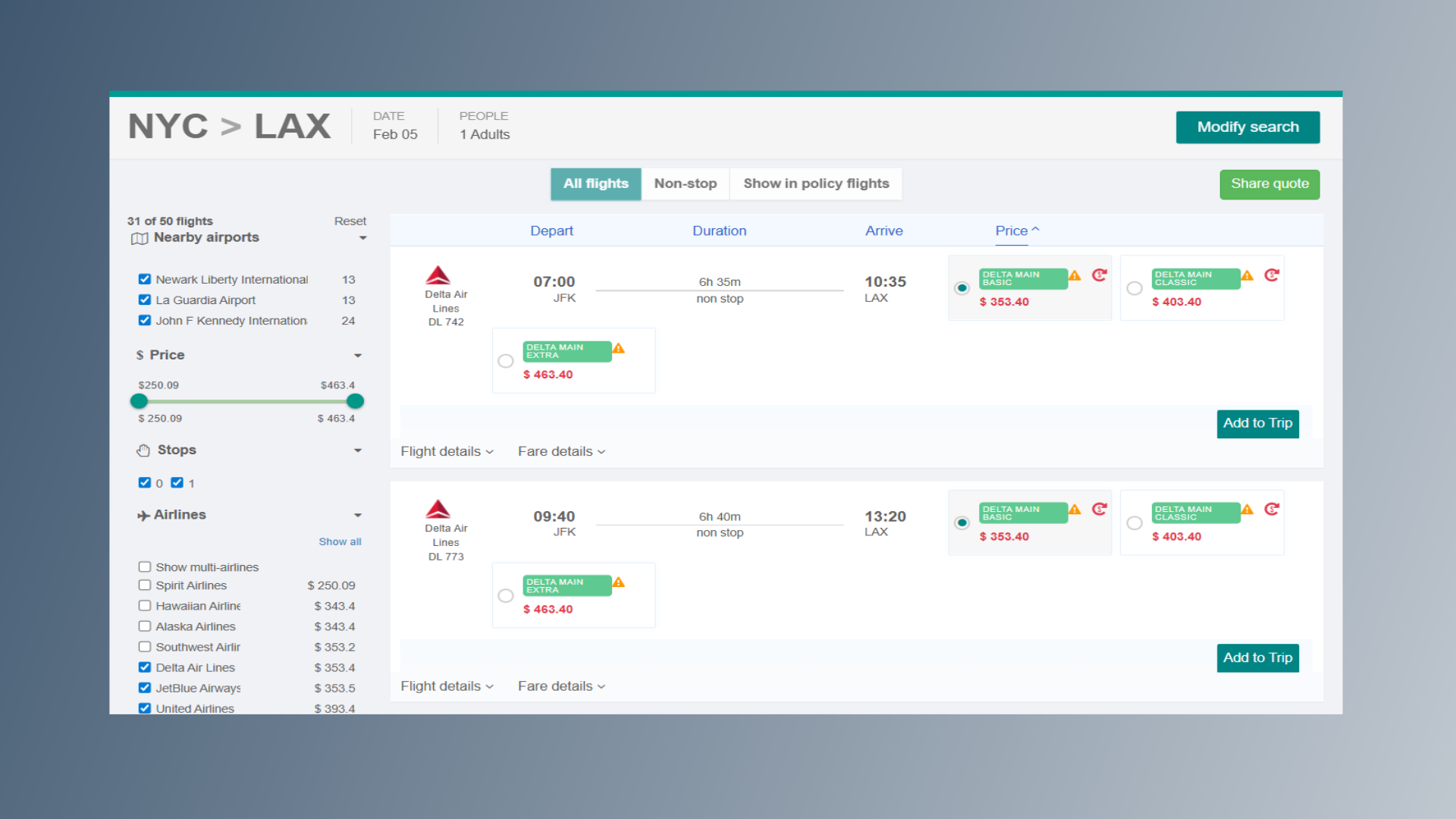
8. Add Trip
Select your desired flight and click Add Trip.
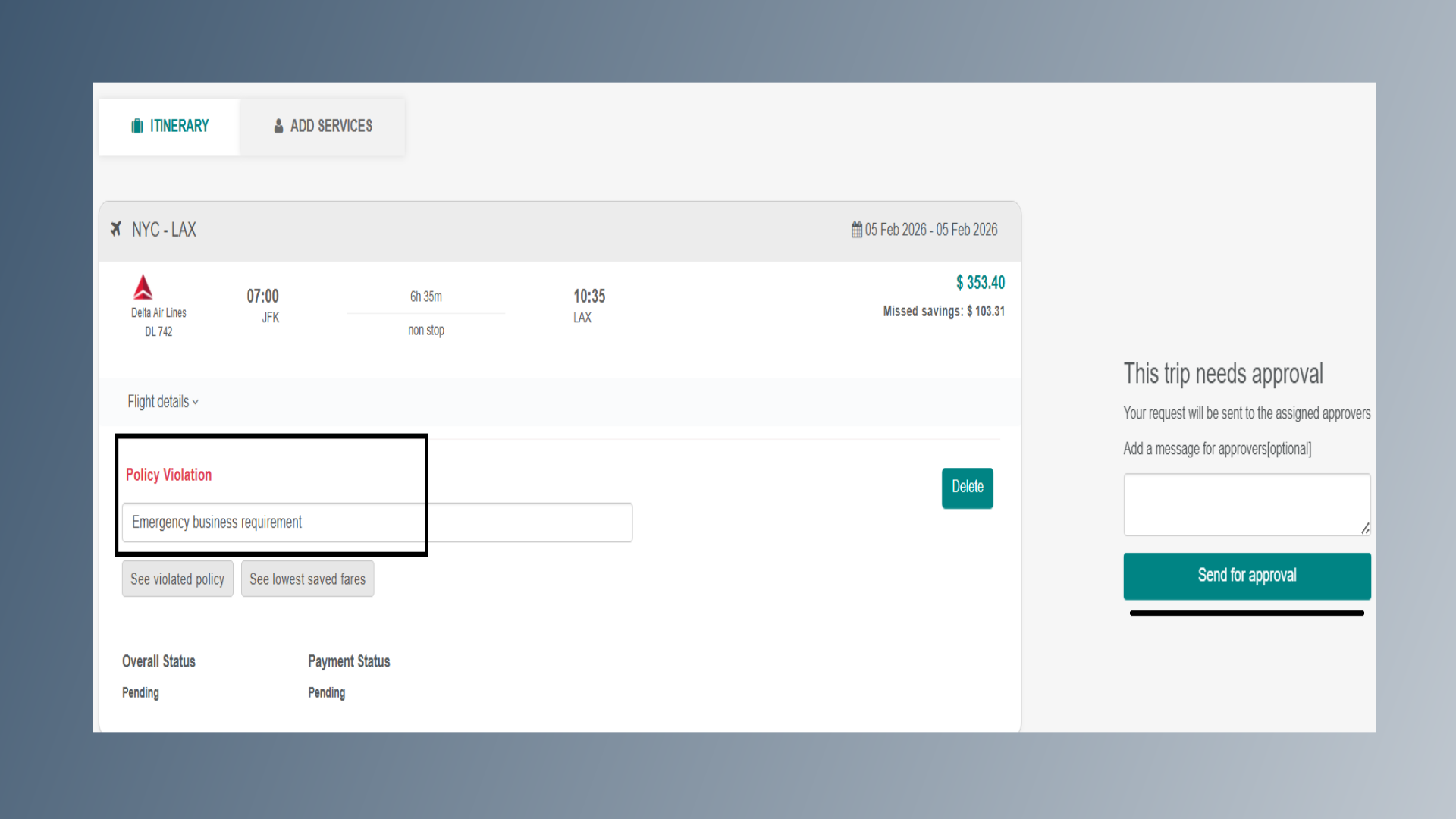
9. Policy Violation
You will then be redirected to the Itinerary Page. Enter the reason for policy violation (if applicable). Add a message for the approver (if required). Click Send for Approval.